WordPress Staging vs Production: What Should You Test Where?
Why WordPress Teams Need Both Staging and Production Testing
A staging website and a production website may look almost identical, but they are not the same environment.
Staging is designed to let teams test changes before real users are affected. Production is the live website used by customers, visitors, search engines, payment systems, analytics platforms, and external integrations.
A good WordPress QA process therefore does not ask:
Should we test on staging or production?
It asks:
What should we test on staging, and what must still be verified after deployment to production?
The safest model is usually:
Deep QA on Staging → Controlled Deployment → Focused Production Smoke Test
Testing everything for the first time in production creates unnecessary risk. Testing only in staging creates a different problem: some production-specific failures may never be detected.
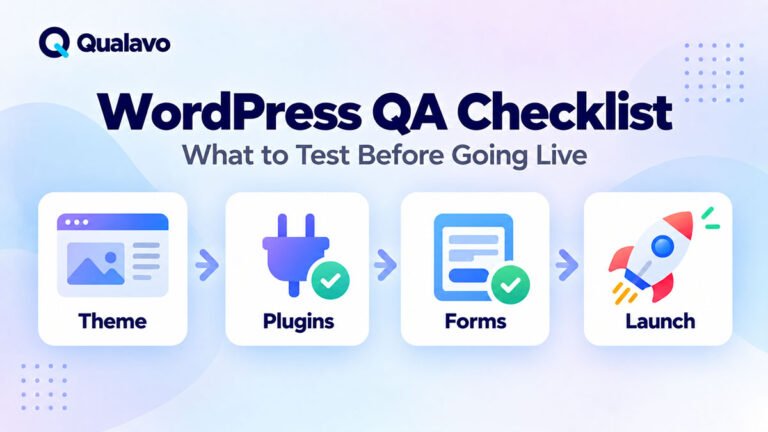
For a wider WordPress QA framework, see WordPress QA Checklist: What to Test Before Going Live.
What Is a WordPress Staging Environment?
A staging environment is a non-public or restricted copy of the website used for testing changes before they reach production.
Ideally, staging is close enough to production that meaningful testing can be performed. It may contain the same WordPress version, theme, plugins, PHP version, database structure, server configuration, and major integrations.
The closer staging is to production, the more useful its results become.
However, staging often uses different domains, credentials, API keys, payment modes, email configurations, caching rules, and third-party integrations.
These differences are exactly why production verification remains necessary.
What Is the Production Environment?
Production is the live website.
It is the environment where customers place orders, users log in, forms generate real leads, analytics collects real data, search engines crawl pages, and integrations interact with live systems.
Production should therefore not be treated as an unrestricted QA playground.
Testing there should generally be:
focused, safe, reversible, and designed to minimize impact on real users and data.
The purpose of production testing is usually verification rather than experimentation.
The Core Principle
A practical rule is:
Test functionality deeply in staging. Verify deployment-critical behavior in production.
For example, in staging you might thoroughly test a checkout workflow using a payment sandbox. In production, you might run a carefully controlled live transaction to confirm that the real payment integration works.
In staging, you might inspect dozens of responsive layouts. In production, you may verify only the most critical pages and workflows after deployment.
This creates better coverage without unnecessarily exposing users to test activity.
Test New Features in Staging First
New functionality should normally receive its primary QA cycle in staging.
Examples include new forms, redesigned pages, checkout changes, account features, membership workflows, custom plugins, and new WordPress blocks.
Testing before production allows defects to be discovered without affecting real customers.
The full cycle can happen safely:
Test → Report → Fix → Retest → Regression
For the broader process, see How to Test a Website Before Launch: A Step-by-Step QA Process.
Test Plugin Updates in Staging
Plugin updates can change much more than the plugin’s visible settings.
They may affect JavaScript, CSS, database structures, APIs, forms, authentication, caching, or integrations.
High-risk plugin updates should therefore be tested in staging before production whenever possible.
A useful workflow is:
Backup → Update Staging → Test → Fix or Roll Back → Deploy to Production → Smoke Test
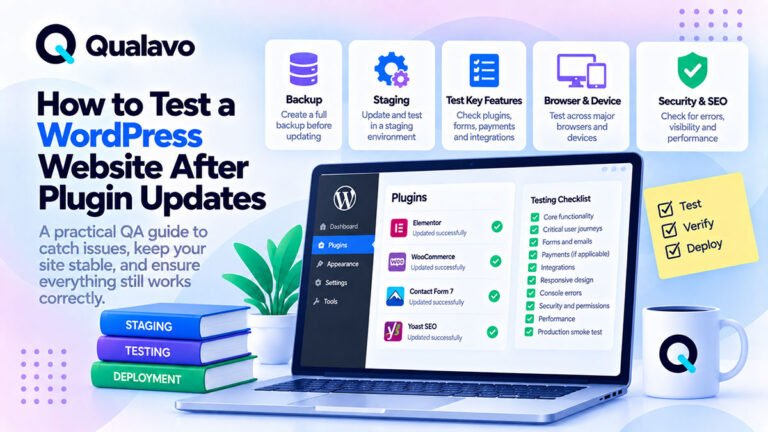
For the detailed process, see How to Test a WordPress Website After Plugin Updates.
Test Theme Changes in Staging
Theme changes can affect large portions of a WordPress website at once.
Staging is the right place to test layout, typography, navigation, responsive behavior, templates, headers, footers, archive pages, and reusable blocks.
If shared CSS changes, inspect representative templates instead of checking only the page where the change was requested.
A small global CSS change can create regressions across many page types.
Perform Responsive QA in Staging
Responsive testing often requires changing viewport sizes repeatedly and inspecting many pages.
That is much more practical in staging.
Check representative layouts across desktop, laptop, tablet, and mobile. Also test around important breakpoint boundaries.
For a complete process, see Responsive Website Testing Checklist for Desktop, Tablet and Mobile.
After deployment, production usually needs only focused responsive verification unless the deployment itself changes responsive behavior.
Perform Broad Browser Testing in Staging
Cross-browser coverage should primarily happen before production.
Test the supported browser matrix against the most important workflows.
Common environments may include Chrome, Safari, Edge, Firefox, and representative mobile browsers.
Use staging to investigate browser-specific problems without affecting real users.
For environment selection, see Browser and Device Test Matrix: How to Choose What to Test.
For deeper compatibility testing, see Cross-Browser Testing Guide: How to Test Websites Across Browsers.
Test Forms Deeply in Staging
Forms deserve more than a visual check.
In staging, test valid submission, required fields, invalid inputs, validation messages, success behavior, error handling, and responsive layouts.
Also verify the downstream result where the staging integration supports it.
For example:
Form → Test CRM → Test Notification Email
However, staging email and CRM behavior may differ from production. That means production still requires targeted verification.
Do Not Assume Staging Email Proves Production Email
Email is one of the clearest examples of environment-specific behavior.
Staging may use an email-capture plugin, sandbox SMTP, disabled outgoing email, or different sender credentials.
Production may use a real transactional email provider.
Therefore, staging should verify workflow, content, trigger logic, and validation, while production should verify actual delivery of critical messages.
Examples include contact notifications, password resets, account verification, order confirmation, and booking messages.
A production smoke test should include the highest-value email flows.
Test Authentication Thoroughly in Staging
Account-related functionality should receive most of its coverage before release.
Test signup, login, logout, password reset, email verification, user roles, session behavior, and protected pages.
If production uses different domain or cookie settings, perform focused authentication verification again after deployment.
For deeper authentication coverage, see How to Test Login, Signup and Password Reset Flows.
Authentication bugs can easily become production blockers.
Test Roles and Permissions in Staging
WordPress projects may use Administrator, Editor, Author, Subscriber, Customer, or custom roles.
Staging is the appropriate environment for broad permission testing because intentionally attempting restricted actions is safer there.
Verify both:
what users can access
and:
what users cannot access.
Production verification should normally be limited to a few important role checks unless a permission-related change was part of the release.
Test E-commerce Workflows in Staging
For WooCommerce and other e-commerce sites, staging should receive deep coverage of products, variants, cart, coupons, shipping, taxes, checkout, payment logic, and order creation.
Use sandbox payment methods where possible.
For cart-specific testing, see Shopping Cart Testing: Common Issues and QA Checks.
For the full transaction scope, see E-commerce Website Testing Checklist: What to Test Before Launch.
For the checkout process specifically, see How to Test an E-commerce Checkout Flow.
Production Payment Verification Is Still Important
A sandbox cannot prove that the live payment configuration is correct.
Production may use different API keys, webhook URLs, currencies, merchant settings, fraud rules, or account permissions.
After deployment, perform a controlled production verification appropriate to the business.
For example, a low-value real transaction may be completed and then refunded or cancelled according to the site’s normal operational procedure.
The goal is not extensive payment testing in production.
The goal is to confirm that the live integration actually works.
Test Third-Party Integrations in Both Environments
Integrations often behave differently between staging and production.
Examples include CRM, email marketing, payment providers, booking systems, maps, APIs, analytics, and social login.
In staging, test the workflow logic deeply.
In production, verify the live configuration.
For example:
Staging:
Form → Test CRM Record
Production:
Real Form → Production CRM Record
This distinction is important because a perfect staging integration can still fail after deployment if production credentials or endpoints are wrong.
Use Test Accounts in Staging
Staging is the right environment for creating extensive test data.
Examples include multiple user accounts, dummy orders, test coupons, fake CRM submissions, trial memberships, and experimental content.
This allows QA to test unusual conditions without contaminating production data.
Production testing should use controlled test data and clean it up where appropriate.
Test Error States in Staging
Some tests intentionally create failures.
Examples include invalid form submission, failed payment, expired link, missing permission, unavailable API, or incorrect input.
These scenarios belong primarily in staging.
It is safer to create controlled failure conditions there than on a production system serving real users.
Test Edge Cases in Staging
Boundary and edge-case testing also belongs mostly in staging.
Examples include very long form values, maximum quantities, empty states, extreme content lengths, invalid dates, unusual role combinations, and large uploads.
These tests are valuable because they reveal defects.
They are not necessarily appropriate to run repeatedly against live production systems.
Risk-based prioritization can help determine which scenarios deserve the most attention. See Risk-Based Testing: How to Prioritize What Matters Most.
Test Accessibility More Deeply in Staging
Accessibility QA may require detailed interaction with keyboard navigation, focus states, modals, validation errors, zoom, and responsive layouts.
Staging is a better environment for systematic coverage.
For the complete framework, see Website Accessibility Testing Checklist: A Practical QA Guide.
Production can then receive a smaller verification pass after deployment.
Perform Security Sanity Testing Primarily in Staging
Routine QA can verify areas such as HTTPS behavior, authentication, permissions, sensitive-data exposure, error handling, and configuration.
Potentially disruptive security testing should never be performed against systems without explicit authorization.
For routine website QA, staging is generally the safer environment for deeper checks.
See Website Security QA Checklist: Basic Checks Before Launch.
For the distinction between routine QA and specialist security assessment, see Security Testing vs Penetration Testing: What’s the Difference?.
Test SEO Configuration in Staging Carefully
Staging presents a special SEO problem.
You normally do not want staging indexed by search engines.
So staging may intentionally use noindex or restricted access.
Production should not inherit these restrictions accidentally.
This means some SEO checks cannot simply be copied from staging to production.
Verify Search Engine Visibility in Production
After launch, explicitly verify that the production website has the intended indexing configuration.
Check robots directives, WordPress search visibility settings, canonical URLs, XML sitemap, and important pages.
A classic launch mistake is moving a site from staging to production while leaving production blocked from search indexing.
This can create serious SEO consequences even though every visible page works perfectly.
Check Canonical URLs After Deployment
Staging may contain URLs such as:
staging.example.com/page/
Production should reference:
example.com/page/
Verify important pages for incorrect staging canonical URLs.
The same applies to Open Graph URLs, schema URLs, sitemap entries, and internal links where relevant.
Check for Staging URLs in Production
After deployment, search for references to the staging domain.
These can appear in images, buttons, internal links, CSS, JavaScript, metadata, or database content.
A production page linking back to staging is a common migration defect.
Important pages should be inspected after the live deployment.
Test Redirects in Production
Redirect behavior can depend on the real domain, web server, SSL configuration, CDN, or hosting environment.
Therefore, important redirects should be verified on production.
Examples include:
HTTP → HTTPS
Old URL → New URL
www → non-www, or the reverse.
Staging may not reproduce these conditions accurately.
Test HTTPS in Production
Production should use the correct live TLS certificate and HTTPS configuration.
After launch, verify that the site loads securely, HTTP redirects correctly, important assets use HTTPS, and there are no obvious mixed-content problems.
Staging HTTPS behavior is useful but does not prove the production certificate or domain configuration is correct.
Production Caching Must Be Tested in Production
Caching is often different between environments.
Production may use server caching, WordPress caching plugins, object cache, CDN, browser cache, and edge caching.
Staging may have some or all of these disabled.
After deployment, verify that pages update correctly, forms work, authenticated sessions behave correctly, and dynamic content does not become stale.
Caching-related problems are a major reason staging can pass while production still fails.
CDN Behavior Must Be Verified Live
A CDN may be used only in production.
This can affect images, CSS, JavaScript, caching, redirects, headers, and geographic delivery.
After launch, check representative pages and critical assets.
A missing JavaScript file from the CDN can break functionality even though staging works perfectly.
Verify Minification and Optimization in Production
Production may enable CSS minification, JavaScript minification, deferred scripts, lazy loading, asset combination, or critical CSS.
These settings can create bugs that do not exist in staging if the configurations differ.
After deployment, verify important interactive components such as:
menus, modals, forms, filters, sliders, and checkout.
Test Production Forms End-to-End
This is one of the most important production checks.
Submit a controlled real form.
Verify:
Form Submission → Success State → Email / CRM / Database
Do not stop when the browser shows:
Thank you.
Confirm that the business actually receives the lead.
Verify Production Analytics
Analytics configuration is often environment-specific.
Staging analytics may be disabled, filtered, or connected to a different property.
After deployment, verify important tracking such as:
page views, form conversions, signup events, checkout events, and purchases.
Production analytics failures may not be visible to users but can damage business reporting immediately.
Verify Tag Manager in Production
If Google Tag Manager or another tag system is used, production may load different containers or variables.
Check that the expected production container loads and that critical events behave correctly.
Avoid generating large amounts of artificial conversion data.
Use controlled tests.
Verify Cookie and Consent Behavior
Cookie consent behavior may depend on the production domain.
Check banner appearance, consent choices, persistence, analytics behavior, and scripts that should remain blocked before consent where applicable.
Domain-specific cookie settings can behave differently from staging.
Check Production Cron and Scheduled Tasks
WordPress and plugins may depend on scheduled tasks.
Examples include:
email processing, subscription renewals, data synchronization, scheduled publishing, cleanup jobs, and imports.
Some scheduled tasks may be disabled or behave differently on staging.
For business-critical automation, verify the production configuration after deployment.
Check Production Webhooks
Webhooks deserve specific production verification.
Payment systems, CRM platforms, and external services may send callbacks to production URLs.
Staging may use completely different endpoints.
After launch, confirm critical webhook-driven workflows such as:
payment confirmation, subscription updates, order status changes, or external synchronization.
Test Production File Uploads Where Relevant
Uploads may depend on filesystem permissions, cloud storage, CDN configuration, file-size limits, and security rules.
A staging upload can work while production fails.
If uploads are important to users, include a controlled production verification.
Check Media and Image Delivery
After deployment, inspect important images, PDFs, videos, and downloadable files.
Migration or CDN problems may create broken media URLs even though the page structure itself works.
Check representative content rather than every asset.
Test the Production 404 Page
A production 404 may behave differently because of server routing, CDN rules, or permalink configuration.
Open a nonexistent live URL and verify that:
the correct 404 page appears, navigation remains available, and no technical error is exposed.
Verify WordPress Permalinks
Migration and server changes can affect WordPress rewrite rules.
After deployment, open representative pages, posts, categories, custom post types, and paginated archives.
The admin dashboard may work even when public permalinks return errors.
Verify Production Admin Access
Ensure authorized administrators can still access WordPress login, Dashboard, editor, required plugin screens, and publishing functions.
Do not perform broad destructive admin testing in production.
The purpose is simply to verify operational access.
Check Backups Before Major Production Changes
Staging allows experimentation.
Production needs recovery.
Before an important WordPress deployment or plugin update, verify that an appropriate backup or rollback mechanism exists.
A technically correct change can still produce an unexpected production interaction.
The ability to recover is part of release readiness.
For the broader release decision framework, see What Is Release Readiness? A Guide to Website Launch Decisions.
Do Not Copy the Staging Database Blindly to Production
Database synchronization requires particular care on active websites.
Production may contain newer orders, customer accounts, comments, form submissions, subscriptions, or content.
Replacing the live database with an older staging copy can destroy real data.
The deployment process should clearly identify what files, code, configuration, or database changes are moving between environments.
Be Careful Copying Production Data to Staging
The reverse direction also creates risk.
Production databases may contain customer data, personal information, orders, email addresses, or sensitive content.
If production data is copied to staging, consider access controls, data minimization, anonymization, retention, and who can access the environment.
Staging should not become an uncontrolled copy of sensitive production data.
Staging Should Be Protected
A staging website should not casually become publicly accessible.
Depending on the project, protection may include authentication, IP restrictions, search engine blocking, or other access controls.
This reduces the risk of customers using the wrong site, duplicate content being indexed, or sensitive test information becoming publicly visible.
Keep Staging Close to Production
Staging becomes less useful as the environments diverge.
Try to align important technical components such as WordPress version, PHP version, theme version, plugin versions, and relevant server configuration.
Perfect parity is not always possible.
But unexplained differences make test results less reliable.
Document Known Environment Differences
If staging differs from production, write down the differences.
For example:
| Staging | Production |
|---|---|
| Payment sandbox | Live payment gateway |
| Email capture | Real SMTP |
| No CDN | CDN enabled |
| Analytics disabled | Production analytics |
This immediately shows which areas require live verification.
Use Risk to Decide What Must Be Retested in Production
You do not need to repeat the entire staging QA suite after every deployment.
Use a risk-based approach.
Prioritize production checks for critical user journeys, environment-specific integrations, recently changed functionality, caching, email, payment, analytics, authentication, and deployment-sensitive configuration.
For the broader methodology, see Risk-Based Testing: How to Prioritize What Matters Most.
What Should Be Tested Mainly in Staging?
Staging is generally the best environment for:
deep functional testing, extensive negative testing, boundary testing, plugin and theme updates, broad browser coverage, responsive testing, role and permission testing, exploratory testing, accessibility QA, regression testing, and destructive test scenarios.
It allows the team to investigate defects without harming real users or data.
What Should Be Verified in Production?
Production should usually receive focused verification of:
deployment success, critical pages, navigation, primary forms, live email, authentication, payment, important integrations, redirects, HTTPS, SEO configuration, caching, analytics, CDN behavior, and environment-specific settings.
This is a smoke test, not a complete repetition of staging QA.
A Practical Staging vs Production Matrix
| Area | Staging | Production |
|---|---|---|
| Functional QA | Deep | Critical verification |
| Responsive QA | Deep | Focused |
| Browser QA | Broad | Critical browsers |
| Forms | Full validation | Real delivery check |
| Payments | Sandbox | Controlled live verification |
| Workflow/content | Real delivery | |
| Plugins | Update + regression | Deployment smoke test |
| Permissions | Deep | Critical sanity check |
| Accessibility | Deep | Key workflow verification |
| Security sanity | Broad authorized QA | Production configuration |
| SEO | Structure/configuration | Indexing, canonicals, sitemap |
| Analytics | Test configuration | Real tracking verification |
| Caching/CDN | Approximation | Live verification |
| Integrations | Sandbox/test systems | Production endpoints |
| Regression | Broad | Change-focused smoke test |
The exact balance depends on project risk.
A Practical WordPress Deployment QA Process
A repeatable workflow can look like:
1. Prepare Staging
Ensure the test environment contains the intended release.
2. Run Functional QA
Test critical workflows and changed areas.
3. Run Regression Testing
Check important existing functionality.
4. Retest Defects
Confirm fixes.
5. Review Release Risk
Decide whether the release is ready.
6. Confirm Backup or Rollback
Prepare recovery before deployment.
7. Deploy to Production
Use the controlled release process.
8. Run Production Smoke Testing
Verify environment-specific behavior.
9. Monitor
Watch for unexpected production issues.
This separates deep testing from live verification while keeping both in the release process.
Production Testing Should Be Short but Meaningful
A production smoke test should not take hours unless the release risk justifies it.
For a standard WordPress site, a focused verification might include:
homepage, primary navigation, important landing page, contact form, authentication where relevant, important integration, and analytics.
For e-commerce, add cart, checkout, payment, and order confirmation.
For the full post-deployment framework, see Post-Deployment Smoke Testing: What to Check After Release.
Do Not Use Production as the Primary Test Environment
Testing only in production creates unnecessary risk.
Potential consequences include real customers encountering defects, test orders contaminating reports, fake leads entering the CRM, test emails reaching customers, and unintended data changes.
Staging exists so most defects can be found before those consequences become possible.
But Do Not Trust Staging Alone
The opposite mistake is assuming:
It worked on staging, so production must be fine.
Production introduces real domains, certificates, caching, credentials, payments, APIs, CDN, email, analytics, and infrastructure.
These differences can create defects that staging cannot reproduce.
The correct approach uses both environments for different purposes.
What If Staging Is Very Different From Production?
The larger the difference, the less confidence staging provides.
If staging uses a different PHP version, different plugin versions, different theme configuration, or different server architecture, a successful staging test may not predict production behavior well.
In that case, either improve environment parity or increase controlled production verification.
The long-term solution should usually be better staging fidelity.
What If There Is No Staging Environment?
Some small WordPress sites still operate without staging.
That increases release risk.
For minor content changes, careful production editing may sometimes be acceptable.
For higher-risk changes such as plugin upgrades, theme changes, custom code, checkout modifications, or major redesigns, creating a staging environment is strongly preferable.
The greater the possible impact, the more valuable staging becomes.
Staging Does Not Eliminate the Need for Backups
Staging reduces risk.
It does not make deployments risk-free.
Even a fully tested release can encounter a production-specific problem.
Backups, rollback procedures, and production verification remain necessary.
Release confidence comes from multiple controls working together.
Use Go/No-Go Before Deployment
Before moving the release from staging to production, review test coverage, open defects, known limitations, environment differences, deployment plan, and rollback readiness.
The question should be:
Do we understand the remaining risk well enough to deploy?
For a structured decision process, see Go/No-Go Checklist: Is Your Website Ready to Launch?.
Some Issues Should Stop Deployment
Do not deploy simply because the calendar says launch day.
A serious defect affecting checkout, authentication, data integrity, sensitive information, critical forms, or another primary business workflow may justify a No-Go.
For a detailed framework, see Which Bugs Should Block a Website Release?.
Use a Clear Defect Process Across Both Environments
If a defect appears in staging or production, document it consistently.
Include environment, browser/device, page, reproduction steps, expected result, actual result, severity, and evidence.
The environment is particularly important.
A bug reproduced only in production may point directly to an environment-specific configuration.
For a reusable structure, see Bug Report Template: What Every Defect Report Should Include.
WordPress Staging vs Production Checklist
- Staging WordPress version matches production where possible.
- Staging PHP version is representative.
- Theme versions are aligned.
- Relevant plugin versions are aligned.
- Environment differences are documented.
- New functionality is fully tested in staging.
- Plugin updates are tested before production.
- Responsive coverage is completed in staging.
- Supported browsers are tested.
- Forms receive full staging validation.
- Authentication and permissions are tested.
- E-commerce workflows are tested with sandbox systems.
- Accessibility checks are completed.
- Security sanity checks are completed.
- Critical defects are retested.
- Regression testing is complete.
- Backup or rollback is available.
- Production deployment succeeds.
- Production pages load correctly.
- HTTPS works.
- Production forms deliver correctly.
- Live email works.
- Live payment works where relevant.
- Production integrations work.
- Caching and CDN behavior are verified.
- Production indexing configuration is correct.
- Canonicals and sitemap use production URLs.
- Analytics and conversion tracking work.
- No unexpected staging URLs remain.
- Critical user journeys pass in production.
- Production smoke testing is documented.
Use the Right Environment for the Right Question
A useful way to think about the two environments is:
Staging asks:
Does the feature work correctly?
Production asks:
Did the real deployment and production configuration preserve that behavior?
Those questions overlap, but they are not identical.
Using both gives stronger release confidence.
Build Environment Testing Into Your WordPress QA Process
Do not treat staging and production verification as separate optional activities.
Build them into the release workflow:
Develop → Deploy to Staging → QA → Fix → Retest → Regression → Release Review → Production Deployment → Smoke Test
This creates a clear handoff between development, QA, and operations.
For teams that need deeper WordPress QA, release readiness, regression testing, accessibility, security sanity checks, e-commerce testing, and client reporting, Qualavo QA Professional provides the more complete QA workflow.
Final Thoughts
Staging and production serve different QA purposes.
Staging is where you test deeply.
Use it for functional testing, plugin updates, responsive QA, browser coverage, negative scenarios, permissions, regression testing, and defect retesting.
Production is where you verify reality.
Use it to confirm live forms, email, payments, integrations, HTTPS, caching, CDN behavior, SEO configuration, analytics, and critical user journeys.
Do not use production as the place where major problems are discovered for the first time.
But do not assume that a successful staging test guarantees a successful production deployment either.
The strongest WordPress QA process uses both:
deep staging QA + focused production verification.
That combination provides far better release confidence than relying on either environment alone.