WordPress QA Checklist: What to Test Before Going Live
Why WordPress Needs Its Own QA Checklist
WordPress websites can look simple on the surface while depending on many moving parts underneath.
A typical WordPress project may include:
- a theme;
- page builder;
- plugins;
- forms;
- custom post types;
- SEO configuration;
- analytics;
- caching;
- third-party integrations;
- user roles;
- redirects;
- media;
- hosting-specific settings.
A change in one area can affect another.
For example:
- a plugin update can break a form;
- a caching change can serve old CSS;
- a theme update can change spacing;
- a migration can break image URLs;
- a production setting can accidentally block search engines.
Because of this, WordPress QA should cover more than visual review.
The goal is to verify that the website works as a complete system before launch.
WordPress QA Should Start Before Launch Day
Do not wait until the website is moved to production before testing it properly.
A stronger process is:
Build → Staging QA → Fix → Retest → Release Review → Production Launch → Smoke Test
Most functional and visual testing should happen before launch.
Production verification should then confirm that the migration or deployment did not introduce new problems.
For the final release decision, see:
Go/No-Go Checklist: Is Your Website Ready to Launch?
1. Confirm the Correct WordPress Environment
Before testing, verify where you are.
Possible environments include:
- local;
- development;
- staging;
- production.
Check:
- site URL;
- WordPress URL;
- database/environment;
- active theme;
- active plugins.
It is surprisingly easy to test one environment while assuming you are testing another.
2. Check the Homepage
Start with the most important page.
Verify:
- correct homepage loads;
- hero content is correct;
- CTA buttons work;
- images load;
- navigation works;
- layout looks correct;
- no placeholder content remains.
Also confirm the correct page is configured as the homepage.
3. Check All Important Pages
Review priority pages such as:
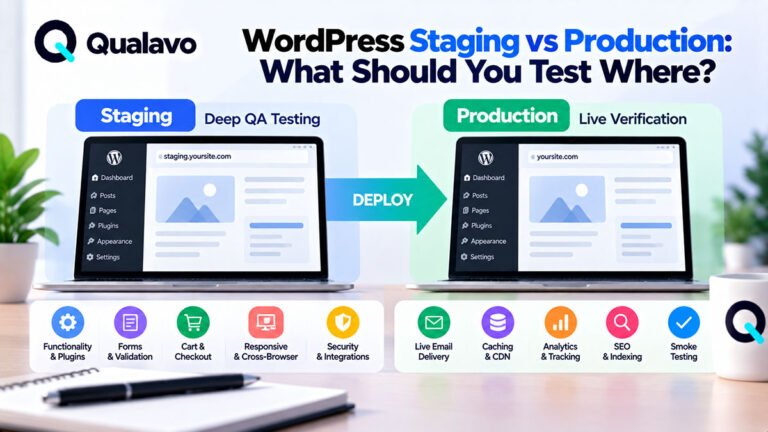
- Home;
- About;
- Services;
- Products;
- Pricing;
- Contact;
- Resources;
- Privacy Policy;
- Terms.
For each page, verify:
- content;
- layout;
- links;
- images;
- headings;
- CTA buttons.
Do not assume a reusable template means every page is automatically correct.
4. Check WordPress Pages and Posts Separately
Pages and posts may use different templates.
Test both.
For posts, check:
- title;
- author;
- publication date;
- category;
- featured image;
- excerpt;
- content width;
- headings;
- related content;
- pagination if used.
A theme can render posts differently from standard pages.
5. Test the Main Navigation
Check:
- menu items;
- dropdowns;
- submenu hierarchy;
- active states;
- mobile menu;
- logo link.
Verify links point to the correct production-ready destinations.
Look for:
- old pages;
- staging URLs;
- dead links;
- duplicate menu items.
6. Test the Footer
Footers often contain many links that receive less attention during development.
Check:
- navigation;
- contact details;
- legal links;
- social links;
- newsletter;
- copyright;
- product links.
Footer links should point to the correct final URLs.
7. Test Responsive Layouts
WordPress page builders can behave differently across breakpoints.
Check representative widths such as:
- small mobile;
- standard mobile;
- tablet;
- laptop;
- large desktop.
Look for:
- overlapping text;
- horizontal scrolling;
- broken grids;
- clipped images;
- oversized headings;
- poor spacing;
- hidden buttons.
For a structured browser/device strategy:
Browser and Device Test Matrix: How to Choose What to Test
8. Check Mobile Navigation
Mobile menus deserve separate testing.
Verify:
- menu opens;
- submenu expands;
- links work;
- close button works;
- menu does not cover content incorrectly;
- scrolling behaves properly.
Also test orientation where relevant.
9. Check Tablet Layout
Tablet layouts are often overlooked.
They can expose issues between desktop and mobile breakpoints.
Check:
- multi-column sections;
- navigation;
- cards;
- forms;
- images;
- modal width.
10. Test Forms
WordPress sites frequently depend on plugins for forms.
Examples:
- contact form;
- newsletter;
- quote request;
- lead form;
- application form;
- booking form.
For each important form:
- submit valid data;
- submit invalid data;
- leave required fields empty;
- verify confirmation;
- confirm notification delivery.
Do not stop after seeing a success message.
11. Verify Form Emails
Check:
- email arrives;
- sender is correct;
- recipient is correct;
- reply-to works;
- subject is correct;
- submitted data is included.
Production email configuration can differ from staging.
This should also be retested after launch.
12. Check Spam Protection
If forms use:
- CAPTCHA;
- honeypot;
- anti-spam plugin;
verify the protection does not block legitimate submissions.
Also verify it behaves correctly on mobile and with keyboard navigation.
13. Check Links
Review important:
- internal links;
- external links;
- buttons;
- image links;
- footer links;
- menu links.
Look for:
- 404s;
- staging URLs;
- HTTP instead of HTTPS;
- outdated destinations.
14. Check Redirects
If old URLs changed, verify redirects.
Example:
Old:
/old-service/
New:
/services/new-service/
Confirm:
- redirect works;
- final destination is correct;
- no redirect loop;
- no unnecessary chain.
15. Check the 404 Page
Open a deliberately invalid URL.
Verify:
- custom 404 page loads;
- navigation remains available;
- design matches the site;
- user can return to useful content.
16. Test Search
If the website has search, test:
- exact match;
- partial term;
- no result;
- special characters;
- post search;
- product search where applicable.
Check whether results are relevant and usable.
17. Test Categories and Archives
If the site uses blog or resource categories, check:
- category pages;
- post listings;
- pagination;
- archive layout;
- links;
- featured images.
For your own QA Guides structure, category archives should remain consistent with the main knowledge hub.
18. Test Pagination
If posts or archive pages use pagination:
- Next;
- Previous;
- numbered pages;
- last page;
- first page.
Check whether filters or search state remain correct where applicable.
19. Check Featured Images
Verify:
- correct image;
- correct crop;
- no distortion;
- no missing image;
- correct aspect ratio.
Also check whether the theme displays the featured image:
- on archive cards;
- on individual posts;
- both.
Make sure this matches the intended design.
20. Check Image Optimization
Review large visual assets.
Look for:
- unnecessarily huge files;
- poor compression;
- wrong image dimensions;
- blurry images;
- inappropriate format.
Performance matters, but do not reduce quality unnecessarily.
21. Check Image Alt Text
Informative images should have useful alternative text.
Decorative images should not create unnecessary screen-reader noise.
For deeper accessibility guidance:
Website Accessibility Testing Checklist: A Practical QA Guide
22. Check Media and Downloads
If the site contains:
- PDFs;
- ZIP files;
- documents;
- videos;
- downloadable resources;
verify:
- link works;
- file opens/downloads;
- correct file is delivered;
- old versions are not linked accidentally.
23. Check Headings
Review page structure.
A typical page should have:
H1 — Page title
H2 — Main section
H3 — Subsection
Avoid using heading tags purely for styling.
This helps both accessibility and content structure.
24. Check Content Quality
Look for:
- typos;
- placeholder text;
- duplicate content;
- test text;
- inconsistent capitalization;
- incorrect company information.
Common launch leftovers include:
- Lorem ipsum;
- Draft;
- Test;
- Sample Page;
- temporary phone numbers.
25. Check Buttons and CTA Text
CTA buttons should be:
- clear;
- consistent;
- correctly linked.
Examples:
Get QA Lite Free
is more useful than:
Click Here
Also verify button styles across pages.
26. Test WordPress User Roles
If the site has multiple users, verify the correct roles.
Examples:
- Administrator;
- Editor;
- Author;
- Contributor;
- Subscriber.
Make sure users have only the access they need.
Do not give Administrator access by default unless required.
27. Test Editor Access
If a client will edit content after launch, test the site as that user.
Check whether they can:
- edit pages;
- publish posts;
- upload media;
- update menus;
- access required plugin screens.
Also check they cannot accidentally access sensitive areas they do not need.
28. Check Author Information
For blog or knowledge-base content, verify:
- display name;
- author link;
- profile information;
- public-facing author name.
Avoid exposing raw account usernames or unnecessary personal data.
29. Review Active Plugins
Before launch, review the plugin list.
Ask:
- Is every active plugin still required?
- Are temporary plugins enabled?
- Are duplicate plugins installed?
- Are unused plugins present?
Fewer unnecessary plugins generally means less maintenance complexity.
30. Check Plugin Compatibility
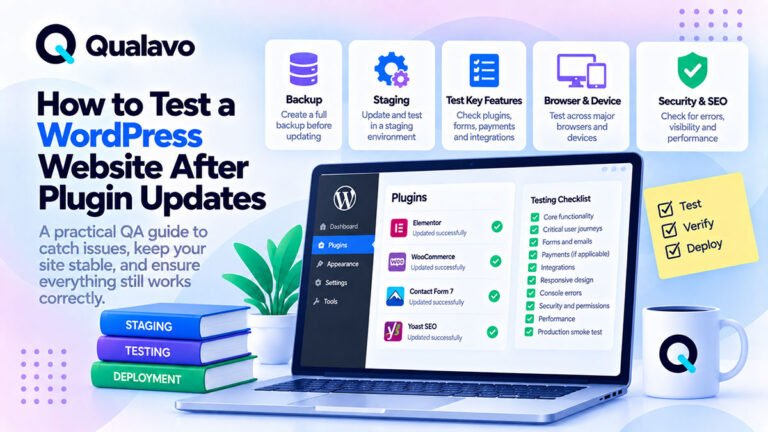
Test important functionality after plugin updates.
Especially check plugins related to:
- forms;
- SEO;
- caching;
- security;
- e-commerce;
- page builders;
- memberships.
A plugin update that appears successful may still create regressions.
31. Remove or Control Unused Plugins
Unused plugins should not remain casually installed forever.
Before launch, review whether they should be:
- removed;
- disabled;
- retained for a documented reason.
Do not delete something important without understanding its role.
32. Check the Active Theme
Verify the correct:
- theme;
- child theme;
- version.
If a child theme is required, confirm customizations are not stored only in a parent theme that may later be overwritten.
33. Test Theme-Specific Components
Themes may control:
- headers;
- footers;
- post layouts;
- archive pages;
- search;
- 404 page;
- sidebars.
Test those separately from page-builder content.
34. Check Page Builder Components
If using a builder such as:
- Gutenberg;
- Kadence Blocks;
- Elementor;
- Divi;
review reusable elements.
Examples:
- rows;
- cards;
- accordions;
- tabs;
- galleries;
- buttons;
- modals.
One broken reusable block can affect many pages.
35. Test Accordions and Tabs
Check:
- open/close behavior;
- keyboard interaction;
- active states;
- responsive behavior;
- deep links if supported.
36. Test Modals and Popups
Check:
- trigger;
- close button;
- overlay;
- keyboard behavior;
- mobile display;
- scroll behavior.
A modal should not become larger than the viewport or trap the user incorrectly.
37. Check WordPress Permalinks
Verify final URL structure.
Look for:
- unnecessary IDs;
- unexpected dates;
- duplicate slugs;
- old temporary slugs.
Do not change an established site’s permalink structure casually because that can affect existing URLs and SEO.
38. Check Slugs
For each important page or article:
- slug is readable;
- lowercase;
- concise;
- stable.
Example:
Good:
/website-qa-checklist/
Poor:
/page-123-final-new-2/
39. Check Search Engine Visibility
One of the most important WordPress launch checks is:
Settings → Reading → Search engine visibility
Make sure the production site is configured according to launch intent.
A public site should not accidentally remain configured to discourage indexing.
Staging, however, may intentionally be excluded from search.
40. Check SEO Plugin Settings
If using an SEO plugin, verify:
- page titles;
- meta descriptions;
- canonicals;
- robots directives;
- sitemap;
- Open Graph data.
Focus on priority pages.
41. Check the XML Sitemap
Verify the sitemap:
- exists;
- loads;
- contains production URLs;
- excludes inappropriate URLs.
Depending on configuration, WordPress or an SEO plugin may generate it.
42. Check Canonical URLs
Important pages should point to their intended production canonical URL.
Look for accidental references to:
- staging;
- HTTP;
- duplicate paths.
43. Check Open Graph and Social Sharing
Test important pages for:
- title;
- description;
- image.
This helps control how content appears on social platforms and messaging apps.
44. Check Analytics
Verify analytics is installed correctly.
Check:
- production tracking ID;
- page views;
- key events;
- conversions.
Do not assume the script being visible means data is being recorded correctly.
45. Check Tag Manager
If using a tag manager:
- correct container;
- production version;
- important tags;
- no development configuration.
46. Check Cookie Consent
If the site has cookie consent:
- banner appears;
- accept works;
- reject works where implemented;
- preferences work;
- privacy links work.
Also confirm behavior matches the project’s legal/privacy requirements.
47. Test Accessibility Basics
Before launch, check:
- keyboard navigation;
- focus visibility;
- labels;
- contrast;
- headings;
- alt text;
- zoom;
- mobile accessibility.
For deeper testing:
WCAG 2.2 Explained for Website QA Teams
48. Check Basic Security Sanity
Routine WordPress QA should include basic security-related checks.
Verify:
- HTTPS;
- admin login;
- user roles;
- protected content;
- debug output;
- error messages.
For a broader checklist:
Website Security QA Checklist: Basic Checks Before Launch
49. Confirm HTTPS
Test:
- homepage;
- forms;
- account areas;
- important internal pages.
Look for mixed-content warnings.
All important production traffic should use HTTPS.
50. Check WordPress Debug Output
Production visitors should not see:
- PHP warnings;
- WordPress notices;
- stack traces;
- database errors.
If debugging is enabled during development, confirm production behavior is appropriate before launch.
51. Protect the Admin Area
Verify:
- admin access requires login;
- old test users are removed or disabled;
- roles are correct.
Do not leave unnecessary administrator accounts active.
52. Test Caching
Caching is a frequent source of WordPress launch issues.
Verify:
- new content appears;
- updated CSS appears;
- logged-out users see current pages;
- form behavior still works.
Clear relevant cache after major changes where required.
53. Check CDN Behavior
If the site uses a CDN, verify:
- images;
- CSS;
- JavaScript;
- fonts;
load correctly.
Watch for old assets remaining after deployment.
54. Check Performance Sanity
You do not need a full performance audit during every QA cycle.
But check for obvious issues:
- very slow homepage;
- enormous images;
- excessive layout shift;
- blocked assets;
- long-loading third-party scripts.
55. Check Lazy Loading
If images or embeds use lazy loading, verify they appear when expected.
Look for:
- blank spaces;
- images never loading;
- layout jumping excessively.
56. Check Third-Party Integrations
WordPress sites often depend on:
- CRM;
- newsletter provider;
- payment processor;
- booking system;
- maps;
- chat;
- social feeds.
Test the real flow.
For example:
Form → CRM → Notification Email
not only:
Form shows success
57. Check API Keys and Environment Configuration
Ensure production uses the correct configuration.
Do not expose:
- API secrets;
- private tokens;
- development credentials.
Avoid accidentally leaving staging integrations active.
58. Test Login and Account Features Where Applicable
If the WordPress site includes memberships, customer accounts, or restricted content, test:
- signup;
- login;
- logout;
- password reset;
- protected pages.
For deeper coverage:
How to Test Login, Signup and Password Reset Flows
59. Test E-commerce Where Applicable
If using WooCommerce or another e-commerce system, test the full purchase flow.
Check:
- product;
- cart;
- checkout;
- payment;
- order creation;
- email;
- account.
For full coverage:
How to Test an E-commerce Checkout Flow
60. Check Backups
Before launch, confirm a recent backup exists.
Depending on the project, this may include:
- database;
- files;
- uploads;
- configuration.
Know:
- where the backup is stored;
- when it was created;
- how restoration would work.
61. Check Staging and Production Separation
After launch, make sure staging and production are not confused.
Check:
- search indexing;
- analytics;
- email;
- payments;
- forms;
- API credentials.
Staging should not accidentally send real customer messages or process real transactions unless intentionally configured.
62. Remove Staging References
Search for:
- staging domain;
- development URL;
- temporary image URLs;
- test emails.
Common places:
- buttons;
- menus;
- forms;
- email templates;
- featured images;
- custom CSS/JS.
63. Check Production Email
WordPress email behavior can differ after migration.
Verify:
- contact forms;
- password reset;
- admin notifications;
- order email;
- signup email.
If email deliverability is business-critical, production testing is essential.
64. Check Scheduled Tasks
If the site depends on scheduled actions, verify they are functioning.
Examples:
- scheduled posts;
- newsletter jobs;
- subscription events;
- backups;
- plugin tasks.
This is especially relevant for more complex WordPress installations.
65. Check Comments
If comments are not needed, confirm they are disabled where intended.
Check both:
- global settings;
- existing posts/pages where applicable.
Also review:
- pingbacks;
- trackbacks.
If the site is not intended as a public discussion platform, these may create unnecessary spam or moderation work.
66. Check Contact and Company Information
Verify:
- company name;
- email;
- phone;
- address;
- business details.
These values often appear in several places:
- footer;
- Contact page;
- legal pages;
- schema;
- email templates.
67. Check Legal Pages
Depending on the website, review:
- Privacy Policy;
- Terms & Conditions;
- Cookie Policy;
- Refund Policy.
Make sure:
- pages exist;
- links work;
- no placeholder text remains.
Legal requirements should be confirmed with the appropriate legal/privacy specialist where necessary.
68. Test Browser Compatibility
Check priority browsers defined for the project.
Common examples:
- Chrome;
- Safari;
- Edge;
- Firefox.
Also test relevant mobile browsers.
Do not test browsers randomly.
Use the agreed test matrix.
69. Retest After WordPress Updates
If you update before launch:
- WordPress core;
- theme;
- plugins;
run regression checks afterward.
Prioritize:
- forms;
- navigation;
- custom layouts;
- account flows;
- e-commerce;
- integrations.
Never assume an update is harmless because installation completed successfully.
70. Retest Fixed Defects
Every important bug should be retested in the environment intended for release.
Verify:
- original issue fixed;
- related behavior still works;
- no obvious regression.
71. Check Release Readiness
Before launch, review:
- critical workflows;
- open defects;
- browser/device coverage;
- accessibility;
- production configuration;
- backups;
- rollback plan.
For the full process:
Go/No-Go Checklist: Is Your Website Ready to Launch?
72. Plan the Production Smoke Test
Before deployment, decide what must be checked immediately afterward.
Typical WordPress smoke test:
Homepage → Navigation → Contact Form → Key CTA → Important Plugin Flow
If applicable, also include:
- login;
- checkout;
- booking;
- analytics.
For post-release testing:
Post-Deployment Smoke Testing: What to Check After Release
A Practical WordPress QA Checklist
Pages and Content
- Homepage is correct.
- Priority pages load.
- Content is final.
- No placeholder text remains.
- Headings are logical.
- CTA buttons work.
- Images load correctly.
Navigation
- Main menu works.
- Dropdowns work.
- Mobile menu works.
- Footer links work.
- Important internal links work.
- 404 page works.
- Redirects work.
Forms
- Valid submissions work.
- Required fields validate.
- Error messages are clear.
- Notifications arrive.
- Spam protection works.
WordPress Configuration
- Correct homepage configured.
- Permalink structure is correct.
- Active theme is correct.
- Required plugins are active.
- Unnecessary plugins reviewed.
- User roles are correct.
- Comments/pingbacks are configured intentionally.
SEO
- Search visibility setting is correct.
- Sitemap works.
- Canonicals are correct.
- Titles/meta descriptions reviewed.
- Production URLs are used.
- Social sharing metadata works.
Responsive and Browser QA
- Desktop checked.
- Mobile checked.
- Tablet checked where relevant.
- Chrome checked.
- Safari checked.
- Edge/Firefox checked where supported.
Accessibility
- Keyboard navigation works.
- Focus is visible.
- Form labels are clear.
- Alt text reviewed.
- Contrast checked.
- Zoom/reflow works.
Security Sanity
- HTTPS works.
- No obvious mixed content.
- Debug information is hidden.
- User permissions are correct.
- Admin accounts reviewed.
Performance and Infrastructure
- Cache behaves correctly.
- CDN assets load.
- Large images reviewed.
- No obvious production performance issue.
- Backup exists.
Integrations
- Analytics works.
- Tag Manager works where used.
- CRM works.
- Email works.
- Payment/booking integration works where relevant.
Release
- Important fixes retested.
- Known issues documented.
- Backup confirmed.
- Rollback approach understood.
- Production smoke test planned.
Prioritize WordPress QA by Risk
Not every site needs identical coverage.
A simple brochure site may prioritize:
- pages;
- responsive layout;
- forms;
- SEO;
- analytics.
A WooCommerce site should give more attention to:
- cart;
- checkout;
- payments;
- order email;
- customer accounts.
A membership site should emphasize:
- login;
- permissions;
- protected content;
- account flows.
Use:
business impact + project complexity + recent changes
to determine depth.
Do Not Trust a Page Just Because It Looks Correct
A WordPress page can look perfect while something critical fails underneath.
For example:
- form email not delivered;
- CTA links to staging;
- page is accidentally noindex;
- analytics missing;
- permission incorrect;
- checkout still in sandbox.
Functional and configuration QA matter as much as appearance.
Do Not Change Major Settings at the Last Minute Without Retesting
Late changes to:
- permalinks;
- caching;
- plugins;
- theme;
- PHP configuration;
- optimization;
can create regressions.
If a major setting changes, repeat the relevant QA.
Document What Was Tested
Instead of reporting:
WordPress QA complete.
use something more specific:
QA covered priority pages, forms, responsive layouts, supported browsers, WordPress configuration, SEO settings, accessibility basics, integrations, and launch readiness.
This communicates real coverage.
Make WordPress QA Repeatable
A repeatable WordPress workflow can be:
Content → Navigation → Forms → Responsive → Browser QA → WordPress Configuration → SEO → Integrations → Accessibility → Security Sanity → Retest → Release
That is more reliable than clicking around the site randomly before launch.
Qualavo Professional includes structured WordPress and CMS QA resources for more advanced project testing, regression, launch readiness, accessibility, security sanity checks, and client reporting.
Turn Your WordPress QA Checklist Into a Repeatable Process
A checklist is a useful starting point, but professional website QA involves more than checking individual items.
With Qualavo QA Professional, you get 18 reusable QA resources covering WordPress testing, bug tracking, release readiness, post-launch monitoring, and client handover.
Instead of rebuilding your QA workflow for every project, use a structured system you can customize and reuse.
Final Thoughts
WordPress QA is not only about checking whether pages look good.
A production-ready WordPress website also needs:
working forms, correct URLs, stable plugins, responsive layouts, appropriate user roles, SEO settings, integrations, security basics, backups, and reliable production configuration.
Test the important user journeys.
Review the WordPress-specific settings.
Retest after updates.
And verify the live site immediately after deployment.
That is how WordPress QA becomes a repeatable release process instead of a last-minute visual review.
Need a structured QA framework for WordPress and CMS projects? Explore Qualavo Professional.