Website Security QA Checklist: Basic Checks Before Launch
What Is Website Security QA?
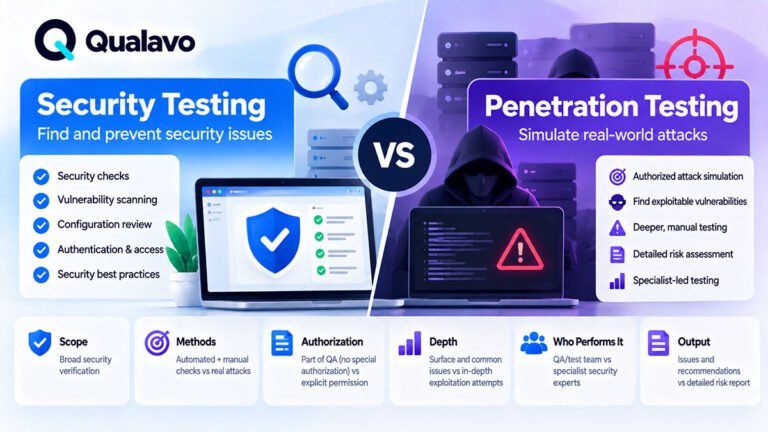
Website security QA is a set of basic checks designed to identify obvious security-related problems before a website or web application is released.
It is not the same as:
- penetration testing;
- vulnerability scanning;
- source-code security review;
- red-team testing;
- formal security assessment.
Security QA is a practical sanity layer within the normal QA process.
Its purpose is to catch issues such as:
- pages accidentally served over HTTP;
- restricted pages accessible without permission;
- sensitive information exposed in URLs or errors;
- insecure cookies;
- debug information visible in production;
- forms behaving unexpectedly;
- authentication and session problems;
- missing basic security headers.
The goal is not to prove that the website is secure.
The goal is to identify obvious, testable risks before launch.
Security QA Should Be Part of Release Readiness
Security should not be treated as a separate activity that happens only after development.
Some security issues can be identified during normal functional QA.
Examples:
- standard user can access admin content;
- logged-out user can open a protected URL;
- password reset token remains reusable;
- error message exposes server details;
- sensitive data appears in the query string.
These are functional defects with security consequences.
For broader release criteria, see:
Go/No-Go Checklist: Is Your Website Ready to Launch?
1. Confirm HTTPS Works Everywhere
All public and authenticated pages should use HTTPS.
Check:
- homepage;
- internal pages;
- login;
- signup;
- account pages;
- forms;
- checkout.
Verify:
- HTTPS loads correctly;
- no certificate warning appears;
- HTTP redirects to HTTPS where expected;
- users are not sent back to HTTP during navigation.
A secure connection should remain consistent throughout the user journey.
2. Check for Mixed Content
Mixed content occurs when an HTTPS page loads some resources over HTTP.
Examples:
- images;
- JavaScript;
- stylesheets;
- fonts;
- embedded content.
This can cause browser warnings or blocked resources.
Check important pages for:
- insecure asset URLs;
- missing images;
- blocked scripts;
- console warnings.
This is especially important after:
- migrations;
- domain changes;
- staging-to-production deployment.
3. Verify the Production Certificate
Check that the SSL/TLS certificate:
- is valid;
- matches the production domain;
- is not expired;
- does not trigger browser warnings.
If multiple domains or subdomains are used, verify relevant ones individually.
4. Check Sensitive Data Is Not Exposed in URLs
URLs may be stored in:
- browser history;
- analytics;
- server logs;
- referrer data.
Sensitive values should not appear unnecessarily in URLs.
Look for:
- passwords;
- authentication tokens;
- private user information;
- payment data;
- password reset secrets.
Example of a risky pattern:
/account?password=example123
Sensitive data should not be exposed this way.
5. Check Forms Use Secure Submission
Important forms should submit over HTTPS.
Examples:
- login;
- signup;
- contact;
- checkout;
- account forms.
Check that form actions do not send data to:
- HTTP endpoints;
- staging environments;
- unexpected third-party URLs.
6. Test Login Security Behavior
Routine QA should verify basic login behavior.
Check:
- valid login succeeds;
- invalid credentials fail;
- user remains unauthenticated after failure;
- error messages do not expose unnecessary account information;
- protected content remains inaccessible until login.
For deeper authentication testing:
How to Test Login, Signup and Password Reset Flows
7. Test Logout Properly
After logout:
- protected pages should not remain accessible;
- direct protected URLs should redirect or reject access;
- browser Back should not restore an active authenticated session unexpectedly.
The UI hiding account links is not enough.
The server should enforce authentication.
8. Test Protected Pages Directly
Do not test permissions only through visible navigation.
Copy the URL of a protected page.
Then:
- log out;
- open the URL directly.
Expected behavior:
- redirect to login;
- access denied;
- another appropriate protected response.
If the page remains available, that is a serious issue.
9. Test User Roles
If the application has multiple roles, verify role boundaries.
Examples:
- Administrator;
- Manager;
- Customer;
- Standard User;
- Read-only User.
Test whether a lower-privilege user can access:
- admin screens;
- another user’s data;
- restricted actions;
- privileged URLs.
Authentication answers:
Who are you?
Authorization answers:
What are you allowed to do?
Both need testing.
10. Test Direct URL Access
A page should not become secure simply because its link is hidden.
Example:
A standard user may not see:
/admin/users/
in the interface.
Still try opening it directly.
The application should enforce permission rules server-side.
11. Test Password Reset Carefully
Password recovery should not weaken account security.
Check:
- reset token works;
- expired token fails;
- used token cannot be reused;
- old password stops working where expected;
- reset flow does not expose unnecessary account data.
Also verify that reset links use the correct production domain.
12. Check Authentication Error Messages
Avoid overly detailed account discovery messages where unnecessary.
For example:
Potentially revealing:
This email address is not registered.
More neutral:
Email or password is incorrect.
The exact requirement depends on the application, but QA should at least identify whether user-facing messages reveal more account information than intended.
13. Check Session Behavior
Test basic session handling.
Examples:
- login;
- logout;
- session expiration;
- password change;
- password reset;
- multiple tabs.
Questions to ask:
- Does logout actually end access?
- Does an expired session redirect appropriately?
- Does a password reset affect active sessions as intended?
Session behavior should match the product’s security requirements.
14. Check Cookies
Use browser developer tools to inspect authentication and session cookies.
Basic things to review include:
- whether sensitive cookies use Secure where appropriate;
- whether HttpOnly is used where appropriate;
- whether SameSite behavior is intentional.
QA does not need to design the cookie policy.
But obvious misconfiguration is worth reporting.
15. Test Access to Another User’s Data
Where applicable, verify users cannot access records belonging to another account.
Examples:
- account page;
- invoice;
- order;
- project;
- uploaded file;
- profile.
Do not attempt unauthorized access beyond approved test accounts and scope.
Within an authorized QA environment, check obvious access-control boundaries.
16. Check File Uploads
If the website accepts uploads, test normal validation.
Check:
- allowed file type;
- file size limits;
- invalid extension;
- unsupported file;
- duplicate filename;
- user feedback.
Do not try to upload malicious payloads unless explicitly authorized for security testing.
Routine QA should focus on safe validation behavior.
17. Check File Downloads
If users can download private files, verify:
- authentication is required where appropriate;
- another user cannot access the file;
- direct URL access behaves correctly;
- expired or removed files are handled safely.
18. Check Forms for Basic Abuse Resistance
Routine QA can test obvious input handling.
Examples:
- very long text;
- special characters;
- empty input;
- unexpected formatting;
- repeated submission.
The application should:
- remain stable;
- validate input clearly;
- avoid server errors;
- avoid exposing technical details.
This is functional robustness testing, not exploit testing.
19. Check HTML and Script-Like Input Handling
Where text fields display user-generated content, test harmless strings containing characters such as:
< > " ' &
The goal is to verify that the application handles user input safely and predictably.
Do not attempt to execute malicious scripts unless the work explicitly includes authorized security testing.
If unusual input causes the interface to break or be rendered incorrectly, report it.
20. Check Error Pages
User-facing errors should not reveal:
- stack traces;
- database names;
- file paths;
- internal IP addresses;
- credentials;
- API secrets;
- source code fragments.
Test:
- invalid URL;
- failed form submission;
- application error states;
- unauthorized access.
Production users should receive understandable, non-sensitive messages.
21. Disable Debug Output
Production should not show:
- PHP warnings;
- framework errors;
- developer toolbar;
- debug panels;
- verbose stack traces;
- SQL errors.
A single debug message can reveal useful internal information to an attacker.
Launch QA should specifically check that debug mode is disabled.
22. Check Source Maps and Development Assets Where Relevant
Some deployments accidentally expose development assets.
Examples:
- source maps;
- development configuration files;
- temporary backups;
- test pages.
QA can perform a basic review of what is publicly accessible if this is within the project scope.
Do not assume deployment automatically excludes development artifacts.
23. Check for Staging References
Look for:
- staging domain;
- development API;
- test credentials;
- demo account information;
- internal email addresses.
Common places include:
- form actions;
- reset emails;
- JavaScript configuration;
- links;
- redirects.
Production should not unintentionally depend on staging systems.
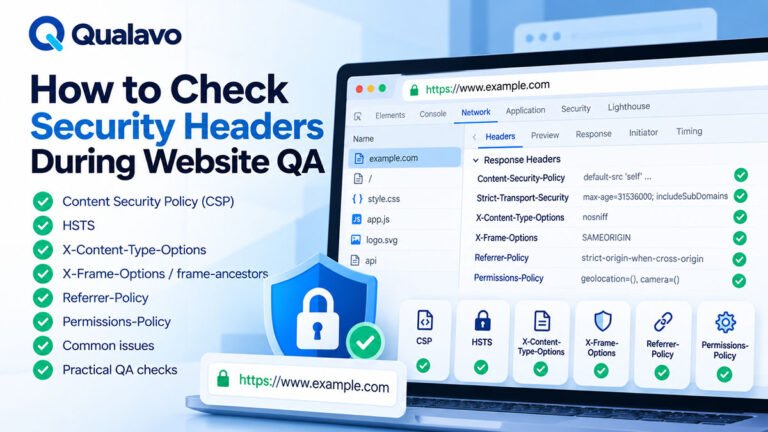
24. Check Security Headers
Basic browser security headers may include:
- Content-Security-Policy;
- Strict-Transport-Security;
- X-Content-Type-Options;
- Referrer-Policy;
- frame-related restrictions.
The exact configuration depends on the website.
QA should not blindly require a specific header configuration without project context.
But if the project’s security baseline defines these headers, confirm they are present and behaving correctly.
25. Check Framing Behavior Where Relevant
Some websites should not be embedded inside arbitrary external pages.
If clickjacking protection is part of the security requirement, verify that framing restrictions are configured appropriately.
This may be handled through:
- Content Security Policy;
- legacy frame-related headers.
Again, configuration depends on the application.
26. Check Referrer Behavior
Sensitive information should not be exposed unintentionally through referral data.
If the project defines a referrer policy, verify it in production.
This is particularly relevant when pages contain:
- private paths;
- account information;
- tokens.
27. Check Cache Behavior for Private Pages
Private content should not be cached in a way that exposes it to another user.
Examples:
- account dashboard;
- billing information;
- user profile;
- admin screen.
A simple sanity test:
- log in;
- open private page;
- log out;
- attempt to revisit it.
Protected content should not remain usable simply because the browser cached the page.
28. Check Payment Pages
For e-commerce websites, payment pages deserve extra attention.
Verify:
- HTTPS;
- approved payment integration;
- no card data exposed in URLs;
- no sensitive payment details displayed unnecessarily;
- failed payment handled safely.
For full checkout QA:
How to Test an E-commerce Checkout Flow
Routine website QA should not attempt payment-security penetration testing.
29. Verify Payment Provider Mode
Before launch, confirm the correct environment is active.
Check whether the system is using:
- sandbox;
- test;
- live production mode.
A website can appear functional while transactions are still routed through test configuration.
30. Check Third-Party Integrations
Review critical integrations for obvious security/configuration problems.
Examples:
- CRM;
- email provider;
- analytics;
- payment gateway;
- identity provider.
Check:
- production credentials are configured;
- secrets are not visible in the frontend;
- failure messages do not expose credentials.
Do not paste or publish real API keys in bug reports.
31. Protect Secrets in QA Evidence
Screenshots and logs can accidentally contain:
- tokens;
- API keys;
- email addresses;
- customer information;
- session IDs.
Before sharing evidence:
- redact secrets;
- remove unnecessary personal data;
- crop irrelevant information.
This applies to both internal and client-facing bug reports.
32. Check Admin Interfaces
If admin areas exist, verify:
- login required;
- low-privilege users cannot access them;
- admin links are not the only security control;
- direct URLs remain protected.
A hidden admin navigation item does not equal authorization.
33. Check Default or Test Accounts
Before launch, verify there are no unintended:
- demo accounts;
- shared test accounts;
- temporary administrator accounts;
- default credentials.
Remove or disable accounts that are no longer required according to the project’s process.
34. Review Account Creation Rules
If public signup exists, check:
- required fields;
- email verification;
- assigned default role;
- account activation state.
A newly created user should not receive more permission than intended.
35. Check Registration Abuse Controls Where Relevant
If the project uses:
- CAPTCHA;
- rate limiting;
- email verification;
- approval workflow;
verify that these controls behave correctly.
Routine QA should test normal success and failure behavior without attempting to bypass protection mechanisms.
36. Check Repeated Login Attempts
If lockout or throttling is part of the product requirements, verify:
- repeated failure handling;
- clear user message;
- legitimate recovery path.
The exact policy depends on the application.
Do not invent security rules that the product does not use.
37. Check Password Requirements
If the application defines password requirements, verify the frontend and backend behave consistently.
Test:
- below minimum length;
- exactly at minimum;
- valid password;
- clearly invalid password.
The UI should accurately describe what the system enforces.
38. Check Password Visibility Controls
If the login or signup form has a show/hide password button:
- password should be hidden by default;
- control should work;
- keyboard users should be able to operate it;
- password value should not change.
This is both usability and accessibility QA.
39. Check Browser Autofill
Authentication fields should behave correctly with password managers and browser autofill where supported.
QA should watch for:
- wrong field mapping;
- credentials inserted into incorrect fields;
- show/hide controls breaking autofill.
40. Check Cross-Origin Behavior Where Relevant
Modern applications may interact with APIs on different domains.
If the application depends on cross-origin requests, verify:
- expected requests work;
- production domain is allowed;
- unexpected browser CORS errors do not appear.
QA should report incorrect production behavior rather than attempting to circumvent access controls.
41. Check Public API Errors
If frontend actions use APIs, inspect obvious error responses.
Do not expose:
- internal stack traces;
- database queries;
- secrets;
- unnecessary implementation details.
User-facing and client-visible responses should be controlled.
42. Check Robots and Search Exposure
Security and SEO are different disciplines, but accidental indexing can expose content that was intended to remain private.
Verify sensitive environments are not publicly discoverable.
Examples:
- staging;
- test directories;
- internal documentation;
- temporary preview pages.
Do not rely on robots.txt as an access-control mechanism.
Private content should be protected properly.
43. Check Staging Access
If staging remains online after launch, confirm its intended access model.
It may need:
- authentication;
- IP restriction;
- another approved access control.
Staging can contain:
- unfinished features;
- test data;
- internal information.
It should not automatically be treated as harmless.
44. Check Backups Are Not Publicly Accessible
Backups and export files should not be exposed through predictable public URLs.
Examples:
- database exports;
- ZIP backups;
- configuration backups.
Routine QA can flag any accidentally visible backup discovered during approved review.
45. Check Personal Data Handling
Where the website handles personal information, verify the visible user flow matches expected behavior.
Examples:
- form data;
- account profile;
- order data;
- contact information.
Check that one user does not see another user’s data.
For regulatory or legal compliance questions, involve the appropriate privacy or legal specialist.
46. Check Sensitive Information in Emails
Transactional email should not expose more information than necessary.
Review:
- password reset;
- account confirmation;
- order emails;
- internal notifications.
Do not email:
- passwords;
- private tokens beyond what is necessary for a secure workflow;
- sensitive information without a legitimate need.
47. Check Session Data After Logout
After logout:
- revisit account page;
- use browser Back;
- refresh.
Verify private information is not restored as an active authenticated page.
48. Check Multiple User Accounts
Where possible, use at least two approved test accounts.
This can expose authorization issues.
Example:
User A creates a record.
Try to access the equivalent resource using User B through the normal application paths and approved test scope.
The application should respect ownership and permission rules.
49. Run Security Checks Again After Important Fixes
Security-sensitive changes should be retested.
Examples:
- authentication fixes;
- role changes;
- session changes;
- payment changes;
- file access changes.
Do not close the issue based only on the developer’s update.
Verify the original scenario again.
50. Include Security Sanity Testing in Launch-Day QA
After deployment, verify the most important production security behaviors.
Examples:
- HTTPS;
- login;
- logout;
- protected routes;
- roles;
- debug output;
- production URLs.
For broader launch verification:
Website Launch Checklist: What to Verify on Launch Day
A Practical Website Security QA Checklist
HTTPS and Transport
- HTTPS works.
- Certificate is valid.
- HTTP redirects appropriately.
- No important mixed-content errors.
- Sensitive forms submit securely.
Authentication
- Valid login works.
- Invalid login fails safely.
- Logout ends access.
- Password reset behaves correctly.
- Protected pages require authentication.
Authorization
- Standard users cannot access admin functionality.
- Direct protected URLs are blocked.
- Users cannot access another user’s private data.
- Default user roles are correct.
Sessions and Cookies
- Session behavior is correct.
- Private content is not exposed after logout.
- Important cookies use intended security attributes.
- Expired sessions are handled correctly.
Data Exposure
- Sensitive data is not placed in URLs.
- Secrets are not visible in frontend output.
- Errors do not reveal internal system information.
- QA screenshots/logs do not expose unnecessary secrets.
Forms and Inputs
- Required validation works.
- Unexpected input does not crash the application.
- File uploads enforce intended limits.
- Repeated submissions behave safely.
Production Configuration
- Debug mode is disabled.
- Staging URLs are removed.
- Live service configuration is correct.
- Test/default accounts are removed or controlled.
- Sensitive staging systems are protected.
Browser Security
- Required security headers are configured.
- HTTPS behavior is consistent.
- Private pages are not exposed by caching.
- No major security-related browser errors appear.
What Security QA Does Not Cover
A basic security QA checklist should not be marketed as a complete security audit.
It normally does not prove protection against:
- sophisticated attacks;
- advanced injection vulnerabilities;
- cryptographic weaknesses;
- infrastructure compromise;
- business-logic abuse;
- zero-day vulnerabilities.
Those areas may require:
- specialist security review;
- automated scanning;
- penetration testing;
- code review;
- infrastructure assessment.
Be precise about the scope.
Security Issues Need Appropriate Severity
Security-related defects should be assessed by actual risk and impact.
Examples:
Potentially Critical / High
- unauthorized access to private data;
- standard user can access admin functions;
- production credentials exposed;
- authentication can be bypassed.
Medium
- sensitive technical details exposed in error handling;
- session behavior inconsistent in a secondary workflow.
Low
- minor configuration inconsistency with limited impact.
Do not assign severity mechanically.
If a finding appears serious or uncertain, involve the appropriate security or technical specialist.
Avoid False Security Claims
Do not write:
Website is secure.
after completing a basic QA pass.
A better statement is:
No obvious security-related defects were identified within the agreed functional QA scope.
That accurately describes what was tested.
Likewise, avoid describing routine QA as a penetration test unless a real authorized penetration test was performed.
Document Security QA Scope
A release report may say:
Security sanity coverage included:
- HTTPS;
- authentication;
- logout;
- role restrictions;
- protected routes;
- sensitive error handling;
- production debug configuration;
- basic cookie/header checks.
This is much more useful than:
Security passed.
Connect Security QA to Release Readiness
Before approving launch, ask:
- Is HTTPS working?
- Are protected areas protected?
- Are roles behaving correctly?
- Are secrets exposed?
- Is debug information disabled?
- Are serious security-related defects still open?
A severe access-control or data exposure issue can be a legitimate release blocker.
For release decisions:
Go/No-Go Checklist: Is Your Website Ready to Launch?
Make Security Sanity Testing Repeatable
Do not rely on someone remembering to check security-sensitive behavior.
Add a standard security sanity section to the QA workflow.
A practical sequence can be:
HTTPS → Authentication → Authorization → Sessions → Data Exposure → Error Handling → Production Configuration → Retest
This creates a repeatable baseline without pretending to replace specialist security testing.
Qualavo Professional includes structured security sanity checks as part of its advanced website QA workflow.
Final Thoughts
Website QA should include basic security checks before launch.
Focus on the areas testers can verify reliably:
HTTPS, authentication, authorization, sessions, permissions, sensitive data exposure, error handling, production configuration, and access to protected content.
These checks can catch serious release problems.
But they are still only one layer of security assurance.
For higher-risk systems, financial applications, sensitive data, or formal security requirements, supplement QA with appropriate specialist security testing.
The goal of security QA is not to prove that nothing can go wrong.
It is to prevent obvious security-related defects from reaching production unnoticed.
Need a structured website QA process that includes security sanity checks? Explore Qualavo Professional.