How to Test Login, Signup and Password Reset Flows
Why Authentication Flows Need Careful QA
Login, signup and password reset flows are some of the most important user journeys in a SaaS product or web application.
If authentication fails, users may be unable to:
- create an account;
- access the application;
- recover a forgotten password;
- verify their email;
- complete onboarding;
- reach paid features;
- continue using the product.
These flows also combine several systems at once.
A single login or signup process may involve:
- frontend validation;
- backend authentication;
- database records;
- sessions;
- cookies;
- email delivery;
- security rules;
- redirects;
- third-party identity providers.
Because of this, authentication QA should test more than whether the form submits.
The full user journey needs to work correctly.
For a broader SaaS testing framework, see:
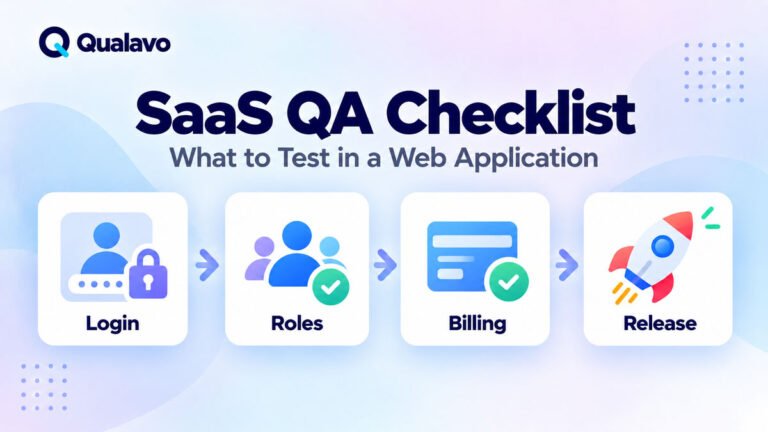
SaaS QA Checklist: What to Test in a Web Application
Authentication Testing Should Cover More Than the Happy Path
The happy path is the simplest successful scenario.
For example:
Valid email + valid password → Login successful.
You should test it.
But it is only one scenario.
Real users may:
- enter the wrong password;
- use an unverified account;
- paste an email with spaces;
- request several reset emails;
- reuse an expired reset link;
- open a verification link twice;
- leave a session inactive;
- use multiple browser tabs;
- attempt login after changing their password.
A strong QA process tests both:
successful flows + failure and edge cases
Testing the Login Flow
1. Test Successful Login
Start with a valid active account.
Steps:
- Open the login page.
- Enter a valid email or username.
- Enter the correct password.
- Submit the form.
Verify:
- login succeeds;
- the user is redirected correctly;
- the expected account/dashboard loads;
- the correct user is authenticated;
- no error message appears;
- the session is created;
- protected content becomes accessible.
Also check whether the redirect makes sense.
For example, users may be expected to return to the page they originally tried to access rather than always being sent to the dashboard.
2. Test Incorrect Password
Enter a valid account identifier with an incorrect password.
Verify:
- login fails;
- the user remains unauthenticated;
- a useful error message appears;
- no protected content becomes accessible;
- the password field behaves correctly after the error.
A typical message might be:
Email or password is incorrect.
Avoid unnecessarily revealing whether a particular account exists if that would create a security or privacy concern.
3. Test an Unknown Account
Enter an email address that is not registered.
Verify the application handles the attempt correctly.
Check:
- message displayed;
- response behavior;
- whether account existence is exposed;
- whether the form remains usable.
Login errors should generally be clear enough to help legitimate users without disclosing unnecessary account information.
4. Test Empty Fields
Submit the login form with:
- both fields empty;
- email empty;
- password empty.
Check:
- required-field validation;
- error placement;
- keyboard focus;
- whether the form is prevented from submitting incorrectly.
The user should understand exactly what needs to be corrected.
5. Test Email Formatting
Where login uses email addresses, test inputs such as:
- valid email;
- invalid email;
- leading spaces;
- trailing spaces;
- uppercase characters;
- mixed-case email.
Examples:
user@example.com
User@example.com
Whether the system normalizes input depends on product requirements, but behavior should be intentional and consistent.
6. Test Show/Hide Password Controls
If the password field includes an eye icon or similar visibility control, test it.
Check:
- password is hidden by default;
- clicking the control reveals it;
- clicking again hides it;
- the password value does not change;
- keyboard users can activate the control;
- the control has an understandable accessible name.
7. Test Remember Me
If the application offers Remember me, verify its behavior.
Test:
- login without selecting it;
- login with it selected;
- closing and reopening the browser;
- logout after using it.
Make sure persistence matches the intended product behavior.
Testing the Signup Flow
Signup is usually more complex than login because it creates new data and may trigger onboarding or verification.
8. Test Successful Registration
Use valid new account data.
Typical steps:
- Open signup.
- Enter required details.
- Accept required terms where applicable.
- Submit registration.
- Complete email verification if required.
- Enter the application.
Verify:
- account is created once;
- data is saved correctly;
- correct confirmation state appears;
- verification email is sent;
- verification link works;
- correct user role or plan is assigned;
- onboarding starts correctly.
9. Test Required Fields
Try to submit signup with individual required fields missing.
Examples:
- name missing;
- email missing;
- password missing;
- terms not accepted.
Verify each field provides appropriate feedback.
Do not test only the completely empty form.
Field-specific validation matters too.
10. Test Duplicate Registration
Attempt signup with an email address that already belongs to an account.
Check:
- whether duplicate creation is prevented;
- message displayed;
- whether login or password recovery is suggested;
- whether the existing account remains unchanged.
The application should not silently create multiple conflicting identities unless that behavior is explicitly supported.
11. Test Password Requirements
If signup has password rules, test every boundary.
For example:
- too short;
- exactly minimum length;
- above minimum;
- missing required character type;
- very long password;
- spaces;
- copied/pasted password.
If the UI displays rules such as:
- minimum 8 characters;
- one uppercase character;
- one number;
verify the actual backend behavior matches those displayed rules.
A common defect is inconsistency between frontend validation and backend validation.
12. Test Password Confirmation
If the signup form contains:
Password
Confirm password
test:
- both match;
- values do not match;
- one field empty;
- copying and pasting;
- changing the first password after entering confirmation.
The error should explain the problem clearly.
13. Test Terms and Consent
If registration requires agreement to terms or privacy policies, verify:
- checkbox is visible;
- relevant links work;
- registration cannot proceed when mandatory consent is missing;
- stored consent behavior matches requirements.
Do not preselect consent options when that would conflict with the intended legal or product requirement.
Testing Email Verification
Many SaaS applications require new accounts to verify their email address.
This deserves its own test flow.
14. Verify the Email Is Actually Delivered
After signup, confirm:
- email arrives;
- recipient is correct;
- sender is correct;
- subject is correct;
- branding is correct;
- verification link exists;
- link uses the correct production/staging domain.
Do not stop at:
Verification email sent.
Confirm actual delivery where possible.
15. Test the Verification Link
Open the verification email and click the link.
Check:
- account becomes verified;
- user sees a clear success message;
- correct next page loads;
- account is not verified multiple times incorrectly;
- login behaves correctly afterward.
16. Test an Expired Verification Link
If verification links expire, test expiration behavior.
The application should:
- reject the old link safely;
- explain that it expired;
- offer a way to request a new one.
Avoid dead-end errors.
Poor:
Invalid token.
Better:
This verification link has expired. Request a new verification email.
17. Test Resend Verification
If users can resend verification emails, test:
- new email arrives;
- newest link works;
- old link behavior;
- repeated requests;
- duplicate messages;
- rate limiting where relevant.
Testing the Password Reset Flow
Password reset is particularly important because it combines authentication, email delivery, token handling and account security.
18. Request a Password Reset
Start from the forgot-password page.
Enter a valid registered email.
Check:
- request succeeds;
- confirmation message appears;
- reset email arrives;
- account remains secure;
- existing password is not exposed.
A common confirmation message is deliberately neutral:
If an account exists for this email address, password reset instructions have been sent.
This can help avoid unnecessary account enumeration.
19. Test Password Reset for an Unknown Email
Enter an email address with no account.
Check how the application responds.
Where account privacy matters, the response should not unnecessarily reveal that the email does not exist.
Compare:
Poor:
No account exists for this email.
Potentially safer:
If an account exists for this email, reset instructions have been sent.
Exact behavior should follow the application’s security requirements.
20. Test the Reset Email
Verify:
- email arrives;
- sender is correct;
- subject is appropriate;
- user understands why it was sent;
- reset link is present;
- correct environment/domain is used.
Also check that the message does not expose sensitive account information unnecessarily.
21. Test a Valid Reset Link
Click the reset link.
Verify:
- correct reset page opens;
- token is accepted;
- user can enter a new password;
- password rules are enforced;
- confirmation works.
After submitting the new password, check:
- reset succeeds;
- clear confirmation appears;
- user can log in with the new password.
22. Verify the Old Password Stops Working
This is important.
After a successful reset:
- log out;
- attempt login with the old password;
- attempt login with the new password.
Expected:
old password → rejected
new password → accepted
A reset flow is not complete until authentication state reflects the new credential.
23. Test Reset Link Reuse
After successfully resetting the password, try the same link again.
A reset token should generally not remain reusable.
Check:
- token is rejected;
- account remains secure;
- user receives a useful message.
Example:
This password reset link is no longer valid.
24. Test Expired Reset Links
If tokens expire, test a genuinely expired token where practical.
Verify:
- password cannot be changed;
- user receives clear feedback;
- new reset can be requested.
Avoid technical messages such as:
Token validation failed: 403.
User-facing errors should be understandable.
25. Test Multiple Password Reset Requests
Request several reset emails.
Questions to verify:
- Do all links work?
- Does only the newest work?
- Are older tokens invalidated?
- Is this behavior documented and consistent?
There is no single correct policy for every application.
The important thing is that the behavior is deliberate and secure.
Test Sessions After Password Changes
Authentication QA should also consider active sessions.
Suppose a user is logged in on:
- laptop;
- phone;
- another browser.
Then they reset or change their password.
What should happen to those sessions?
Possible policies include:
- all sessions remain active;
- all other sessions are terminated;
- every session is terminated;
- user chooses whether to sign out other devices.
Test against the intended behavior.
Unexpected session persistence can become a security issue.
Test Login and Logout Together
Login should never be tested without logout.
Verify:
- login;
- access protected page;
- logout;
- revisit protected page.
After logout:
- protected content should no longer be accessible;
- browser Back should not restore an authenticated state incorrectly;
- session cookie should behave appropriately;
- direct protected URL access should redirect or reject correctly.
Test Protected Routes
Try accessing a protected URL without authentication.
Examples:
/dashboard/
/account/
/admin/
The application should not rely only on hiding links in the UI.
Direct URL access must also be protected.
Test Redirects After Authentication
Redirect behavior affects user experience.
Example:
- user tries to open
/billing/; - application redirects them to login;
- user logs in successfully.
A good system may return the user to:
/billing/
instead of sending them to a generic homepage.
Test expected redirect behavior after:
- login;
- signup;
- verification;
- password reset.
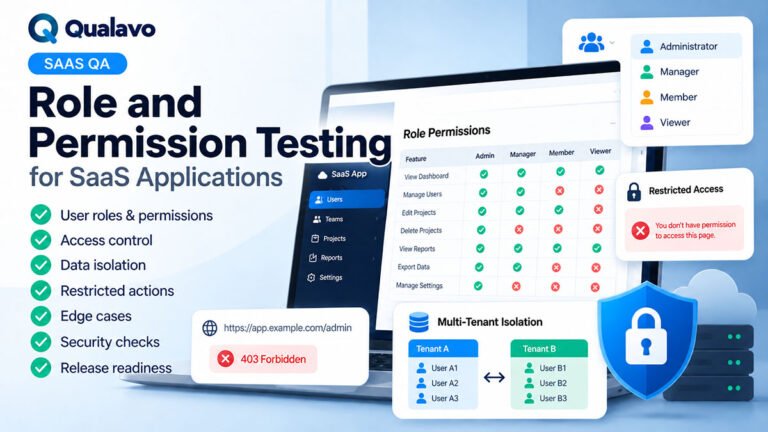
Test User Roles and Permissions
If the application contains multiple roles, authentication testing should include them.
Examples:
- administrator;
- manager;
- client;
- regular user;
- read-only user.
Verify that successful login does not automatically mean access to every feature.
For example:
Can a standard user manually enter an admin URL and access restricted functionality?
Authentication confirms identity.
Authorization controls what that identity is allowed to do.
These should be tested separately.
Test Social Login When Supported
If the product supports:
- Google;
- Microsoft;
- Apple;
- other SSO providers;
test them as separate authentication flows.
Check:
- new user signup;
- existing user login;
- duplicate email handling;
- cancelled authorization;
- denied permissions;
- provider error;
- logout behavior.
Also verify what happens when a user originally created an account with password authentication and later uses a social provider with the same email.
Test Multi-Factor Authentication
If MFA is supported, test:
- enrollment;
- code delivery;
- valid code;
- invalid code;
- expired code;
- resend;
- backup method;
- recovery;
- trusted-device behavior.
Do not assume MFA works because basic login works.
It introduces another complete authentication state transition.
Test Rate Limiting and Repeated Attempts
Where applicable, test repeated:
- failed logins;
- password reset requests;
- verification requests;
- MFA attempts.
The application may use:
- temporary lockouts;
- throttling;
- CAPTCHA;
- increasing delays.
QA should verify these controls do not accidentally block legitimate users permanently or behave inconsistently.
Check Error Messages Carefully
Authentication errors should be useful without exposing unnecessary sensitive information.
Review:
- wording;
- consistency;
- placement;
- accessibility;
- technical information leakage.
Avoid user-facing errors containing:
- SQL messages;
- stack traces;
- token values;
- internal server details.
Authentication forms are public attack surfaces, so errors deserve extra attention.
Test Accessibility of Authentication Forms
Login and signup flows should also be tested for accessibility.
Check:
- fields have labels;
- keyboard navigation works;
- focus order is logical;
- focus states are visible;
- errors are announced or clearly associated with fields;
- password visibility control is accessible;
- CAPTCHA has appropriate alternatives;
- form works at higher zoom.
Authentication barriers can completely prevent a user from accessing the application.
For more accessibility guidance:
WCAG 2.2 Explained for Website QA Teams
Check Mobile Authentication
Authentication often happens on mobile devices.
Test responsive behavior for:
- login;
- signup;
- password reset;
- verification;
- MFA.
Look for:
- keyboard covering fields;
- submit button hidden below viewport;
- zoom problems;
- password manager behavior;
- overlapping validation messages;
- inaccessible close buttons;
- auto-fill issues.
Test Browser Autofill and Password Managers
Users frequently rely on browser autofill and password managers.
Check:
- email field detected correctly;
- password field detected correctly;
- new password can be generated/saved;
- existing passwords can autofill;
- show/hide controls do not break autofill;
- form does not unexpectedly clear credentials.
These problems can make a technically functional authentication flow frustrating in everyday use.
Test Copy and Paste
Avoid assuming password fields must block paste.
Users commonly paste passwords from password managers.
Test:
- paste into password field;
- paste into confirmation field;
- copied reset code where applicable.
If paste is intentionally restricted, verify that the requirement is justified and does not conflict with accessibility or usability goals.
Test Whitespace Handling
Try:
user@example.com
and:
user@example.com
Unexpected whitespace can cause difficult-to-understand login failures.
If the product trims surrounding whitespace, verify it consistently.
If it does not, make sure the user receives clear feedback.
Test Case Sensitivity
Email addresses are commonly treated case-insensitively in authentication systems.
Test examples such as:
User@Example.com
user@example.com
Password case sensitivity should remain exact.
QA should verify that identifier normalization and password handling follow the intended rules.
Test Account States
Not every account is simply active or nonexistent.
Applications may have states such as:
- pending verification;
- active;
- disabled;
- suspended;
- deleted;
- invited;
- expired trial.
Test authentication behavior for relevant states.
For example:
What happens when a suspended user enters correct credentials?
The system should produce the intended business behavior.
Test Authentication Emails Across Environments
One common deployment error is incorrect URLs in emails.
A production reset email might accidentally contain:
staging.example.com/reset/...
Check links in:
- verification email;
- password reset email;
- account invitation email;
- magic login email.
Links should use the correct environment.
This should also be part of post-deployment smoke testing.
Post-Deployment Smoke Testing: What to Check After Release
A Practical Login QA Checklist
- Valid login works.
- Invalid password is rejected.
- Unknown account is handled correctly.
- Required fields validate.
- Email formatting is handled consistently.
- Show/hide password works.
- Remember Me behaves correctly.
- Logout terminates access.
- Protected routes cannot be accessed while logged out.
- Redirect after login is correct.
- Relevant user roles behave correctly.
A Practical Signup QA Checklist
- Valid registration succeeds.
- Required fields validate.
- Duplicate email is handled.
- Password requirements work.
- Password confirmation works.
- Required consent works.
- Correct account is created.
- Verification email arrives.
- Verification link works.
- Expired verification link is handled.
- Resend verification works.
- Correct default role/plan is assigned.
A Practical Password Reset QA Checklist
- Registered user can request reset.
- Unknown email is handled safely.
- Reset email arrives.
- Correct domain is used.
- Valid token works.
- Expired token fails safely.
- Used token cannot be reused.
- Password rules are enforced.
- New password works.
- Old password no longer works.
- Multiple reset requests behave consistently.
- Session behavior after reset is correct.
Do Not Test Authentication Only From the UI
Authentication is a security-sensitive workflow.
Functional QA should verify the user experience, but critical controls should not rely only on frontend behavior.
For example, hiding an Admin button from a standard user does not prove the user cannot access the admin endpoint.
Where appropriate, teams should also verify:
- server-side authorization;
- API behavior;
- protected routes;
- session enforcement.
Routine QA is not the same as penetration testing, but it should still catch obvious access-control failures.
Authentication Testing Should Be Repeatable
Login, signup and recovery flows are ideal candidates for repeatable regression testing because they are:
- business-critical;
- frequently used;
- connected to multiple systems;
- vulnerable to regressions.
A practical workflow can be:
Signup → Verify → Login → Logout → Reset Password → Login Again
This single end-to-end chain validates several important authentication states.
Add role, failure and edge-case coverage based on product risk.
Final Thoughts
Login, signup and password reset flows are gateways to the rest of a SaaS product.
If they fail, users may never reach the features your team spent time building.
Do not test authentication as three isolated forms.
Test it as a connected lifecycle:
Create account → Verify identity → Login → Maintain session → Recover access → Logout
Then add negative cases, role checks, email delivery, token behavior, accessibility and production verification.
The goal is not only to confirm that authentication works when everything goes right.
The goal is to ensure users can reliably access and recover their accounts when real-world conditions are less predictable.
For broader web application QA workflows, explore Qualavo Professional.