E-commerce Website Testing Checklist: What to Test Before Launch
What Is E-commerce Website Testing?
E-commerce website testing is the process of verifying that an online store works correctly across the full customer journey.
This includes more than checking whether product pages look good.
A real e-commerce flow may involve:
- product discovery;
- search and filters;
- product variations;
- cart behavior;
- discounts;
- shipping;
- taxes;
- customer accounts;
- checkout;
- payment;
- inventory;
- transactional email;
- analytics;
- third-party integrations.
A defect in any of these areas can affect:
- conversion;
- revenue;
- customer trust;
- order accuracy;
- support workload.
That is why e-commerce QA should focus heavily on critical user journeys.
Start With the Main Purchase Journey
The most important e-commerce flow is usually:
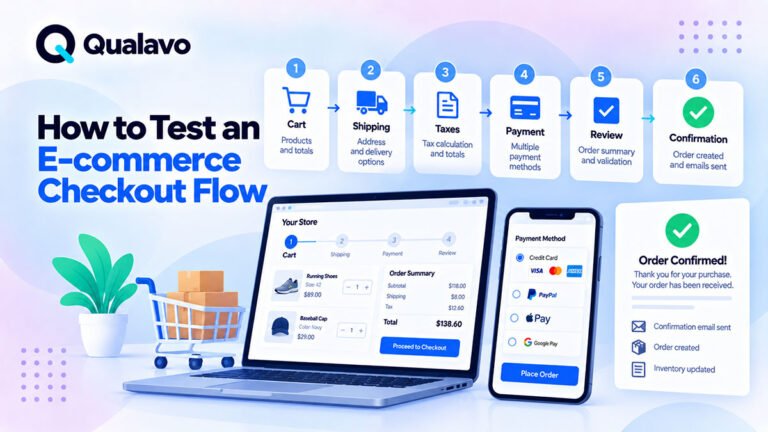
Product → Cart → Checkout → Payment → Order Confirmation
This journey should receive the deepest testing.
Before launch, verify that a customer can:
- find a product;
- understand the product;
- add it to the cart;
- complete checkout;
- pay successfully;
- receive confirmation;
- see the correct order created.
If this flow fails, the store may be technically online but commercially unusable.
For a deeper checkout guide:
How to Test an E-commerce Checkout Flow
1. Test the Homepage
The homepage is often the main entry point.
Check:
- hero section;
- featured products;
- category links;
- promotional banners;
- CTA buttons;
- navigation;
- search;
- mobile layout.
Verify all promotional links go to the intended destination.
2. Test Category Pages
Category pages should help users browse products efficiently.
Check:
- category title;
- product cards;
- images;
- prices;
- sale prices;
- stock state;
- pagination;
- sorting;
- filters.
Make sure products appear in the correct category.
3. Test Product Search
Search should return useful results.
Test:
- exact product name;
- partial product name;
- SKU where supported;
- category term;
- no-result query;
- typo where relevant;
- special characters.
Check whether search results show:
- correct product;
- correct price;
- correct image;
- availability.
4. Test Search With No Results
A no-result state should be useful.
Instead of a blank page, consider whether it provides:
- clear message;
- search suggestions;
- categories;
- popular products;
- corrected search option.
QA should verify that users are not left in a dead end.
5. Test Filters
Common filters may include:
- category;
- price;
- brand;
- size;
- color;
- availability;
- rating.
Test:
- one filter;
- multiple filters;
- clear filters;
- zero-result state;
- back navigation.
Filters should update results correctly.
6. Test Sorting
Common sorting options include:
- price low to high;
- price high to low;
- newest;
- popularity;
- rating.
Verify actual product order matches the selected option.
7. Test Product Pages
Each product page should contain correct information.
Check:
- product name;
- price;
- sale price;
- description;
- images;
- variations;
- stock state;
- shipping information;
- CTA button.
Look for inconsistencies between product cards and product pages.
8. Test Product Images
Check:
- main image;
- gallery;
- thumbnails;
- zoom;
- image switching;
- mobile behavior.
Images should not be:
- broken;
- stretched;
- blurry;
- unexpectedly cropped.
9. Test Product Variations
For products with variants, test:
- size;
- color;
- model;
- bundle;
- quantity.
Verify:
- correct price;
- correct image;
- correct SKU;
- correct stock;
- valid combination.
Unavailable combinations should not be purchasable.
10. Test Out-of-Stock Products
Check what happens when a product is unavailable.
Verify:
- stock message;
- Add to Cart behavior;
- backorder behavior where supported;
- variant availability;
- category display.
A customer should not complete checkout for unavailable stock unless that is explicitly supported.
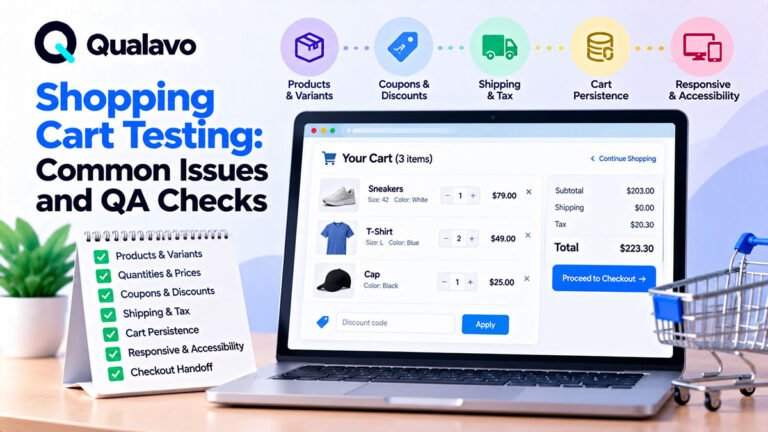
11. Test Add to Cart
For each important product type:
- select options;
- click Add to Cart;
- verify cart state.
Check:
- product added once;
- correct quantity;
- correct variation;
- correct price;
- cart badge updates;
- success message appears where appropriate.
12. Test Repeated Add to Cart
Add the same product several times.
Check whether the store:
- increases quantity;
- creates separate lines;
- blocks duplicates;
according to the intended behavior.
13. Test Cart Quantity Changes
Change quantity.
Check:
- subtotal;
- discounts;
- shipping;
- tax;
- total.
Test:
- increase;
- decrease;
- zero where allowed;
- maximum quantity.
14. Test Remove From Cart
Remove one item.
Verify:
- item disappears;
- totals update;
- cart badge updates;
- remaining products stay correct.
Then remove all items.
The empty-cart state should be clear.
15. Test Cart Persistence
Add a product, then:
- refresh;
- navigate away;
- return later;
- log in where applicable.
Verify whether cart persistence matches the intended behavior.
16. Test Mini Cart
If the website has a mini cart, verify:
- opens;
- correct items appear;
- prices are correct;
- quantity updates if supported;
- remove action works;
- checkout CTA works.
17. Test Guest Checkout
If supported, verify a customer can complete checkout without creating an account.
Check:
- required fields;
- email;
- address;
- shipping;
- payment;
- confirmation.
Guest checkout should not accidentally force registration.
18. Test Account Checkout
For logged-in customers, verify:
- saved address;
- saved customer data;
- order history;
- saved payment method where supported;
- account-specific pricing or discounts.
Guest and account checkout should both be tested.
19. Test Required Checkout Fields
Try submitting checkout with missing:
- name;
- email;
- address;
- postal code;
- country;
- payment details.
Check that errors are:
- clear;
- positioned correctly;
- understandable.
20. Test Address Validation
Test valid and invalid addresses.
Where international shipping is supported, include multiple countries.
Check:
- postal codes;
- state/province;
- country;
- street address.
Do not assume one address format works everywhere.
21. Test Shipping Methods
Test all important shipping options.
Examples:
- standard;
- express;
- free shipping;
- local pickup.
Verify:
- availability;
- price;
- estimated delivery;
- total recalculation.
22. Test Shipping Restrictions
Check location-based rules.
Examples:
- country not supported;
- remote region;
- product cannot ship internationally;
- pickup only.
Users should receive clear feedback.
23. Test Free Shipping Thresholds
If free shipping starts at a certain amount, test:
- just below;
- exactly at;
- just above.
Example:
Threshold: $100
Test:
- $99.99
- $100.00
- $100.01
Boundary testing often catches pricing-rule defects.
24. Test Taxes
Verify tax calculation.
Test:
- taxable product;
- non-taxable product where applicable;
- different locations;
- discounted order;
- shipping tax.
Check tax consistency between:
- cart;
- checkout;
- confirmation;
- email.
25. Test Coupon Codes
Try:
- valid coupon;
- invalid coupon;
- expired coupon;
- already-used coupon;
- minimum-spend coupon;
- product-specific coupon;
- category coupon.
Verify:
- correct discount;
- correct message;
- correct total.
26. Test Multiple Discounts
If multiple discounts can be combined, verify combinations.
If stacking is prohibited, the UI should explain that.
Avoid accidental double-discounting.
27. Test Sale Prices
Check:
- original price;
- sale price;
- discount amount;
- expiry behavior.
Make sure sale pricing is consistent across:
- category page;
- product page;
- cart;
- checkout.
28. Test Checkout Thoroughly
Checkout is one of the highest-risk areas.
Test:
- guest checkout;
- logged-in checkout;
- address validation;
- shipping;
- discount;
- tax;
- payment;
- confirmation.
For the full checklist:
How to Test an E-commerce Checkout Flow
29. Test Successful Payment
Use an approved test method where possible.
Verify:
- payment succeeds;
- order created;
- payment status correct;
- confirmation page shown;
- email sent;
- stock updated.
30. Test Failed Payment
Simulate normal failure scenarios where supported.
Examples:
- declined card;
- invalid details;
- timeout;
- cancelled authentication.
Check:
- order state;
- customer message;
- cart state;
- retry behavior.
A failed payment should not create a completed order.
31. Test Payment Retry
After a failed attempt, retry.
Check:
- cart retained;
- totals unchanged;
- valid payment succeeds;
- only one successful order exists.
32. Test Duplicate Payment Prevention
Test repeated submission.
Examples:
- double-click Pay;
- refresh during payment;
- back/forward navigation.
The store should not create duplicate:
- payments;
- orders;
- confirmation emails.
33. Test Payment Methods Separately
If the store supports multiple methods, test each relevant one.
Examples:
- card;
- PayPal;
- Apple Pay;
- Google Pay;
- bank transfer;
- cash on delivery.
Each payment flow can behave differently.
34. Test Currency
If multiple currencies are supported, verify:
- currency symbol;
- price conversion;
- checkout currency;
- payment provider currency;
- email currency.
Make sure customers are charged what they see.
35. Test Order Confirmation
After purchase, verify:
- order number;
- product;
- quantity;
- subtotal;
- tax;
- shipping;
- discount;
- total;
- payment status.
All values should match checkout.
36. Test Confirmation Email
Check:
- delivery;
- recipient;
- sender;
- order number;
- items;
- total;
- shipping address;
- links.
Make sure production emails do not contain staging links.
37. Check Backend Order Data
Do not stop at the confirmation page.
Verify the order exists in the admin system.
Check:
- correct customer;
- correct products;
- correct quantity;
- correct payment status;
- correct shipping method;
- correct totals.
38. Verify Inventory Update
After successful order:
- stock should decrease correctly.
After failed payment:
- stock behavior should match intended rules.
After cancellation/refund:
- stock restoration should behave as designed.
39. Test Customer Accounts
If customers can create accounts, test:
- signup;
- login;
- logout;
- password reset;
- order history;
- addresses;
- profile.
For deeper authentication testing:
How to Test Login, Signup and Password Reset Flows
40. Test Order History
Verify a logged-in customer sees:
- correct orders;
- correct status;
- correct totals;
- correct details.
A customer should not see another user’s orders.
41. Test Account Addresses
Check:
- add address;
- edit;
- delete;
- default address;
- checkout reuse.
Changes should persist correctly.
42. Test Wishlist Where Supported
Verify:
- add;
- remove;
- persistence;
- login behavior;
- move to cart.
43. Test Product Reviews
If reviews are supported, check:
- submission;
- moderation;
- rating;
- display;
- logged-in restrictions.
Also verify invalid or empty submissions.
44. Test Transactional Emails
Common e-commerce emails include:
- order confirmation;
- payment confirmation;
- shipping update;
- password reset;
- account creation;
- cancellation;
- refund.
Check:
- correct trigger;
- correct recipient;
- correct content;
- correct production URLs.
45. Test CRM and Marketing Integrations
If checkout connects to:
- CRM;
- email marketing;
- loyalty system;
- fulfillment platform;
test the full flow.
For example:
Order → CRM Customer → Purchase Data → Marketing Segment
Do not assume the frontend success state means integrations also succeeded.
46. Test Analytics
Important e-commerce events may include:
- product view;
- add to cart;
- begin checkout;
- payment;
- purchase.
Verify events fire correctly where analytics is in scope.
Purchase events should not fire twice.
47. Test Revenue Tracking
Where applicable, verify:
- order value;
- tax;
- shipping;
- currency;
- product data.
Incorrect analytics can distort business reporting.
48. Test Mobile E-commerce
Mobile deserves special attention.
Check:
- product cards;
- product gallery;
- variation selectors;
- Add to Cart;
- mini cart;
- checkout;
- payment;
- confirmation.
Look for:
- hidden buttons;
- overlapping content;
- keyboard issues;
- sticky elements blocking fields.
49. Test Safari
Safari can expose issues related to:
- forms;
- payments;
- Apple Pay;
- sticky UI;
- layout.
If iPhone users are important to the store, Safari should be a priority environment.
For test-matrix planning:
Browser and Device Test Matrix: How to Choose What to Test
50. Test Other Supported Browsers
Depending on audience, test:
- Chrome;
- Safari;
- Edge;
- Firefox.
Use analytics and project requirements rather than random browser selection.
51. Test Accessibility Basics
Check:
- keyboard navigation;
- focus visibility;
- form labels;
- errors;
- buttons;
- color contrast;
- touch targets;
- zoom.
Checkout accessibility deserves special attention because barriers can prevent a sale.
For deeper guidance:
Website Accessibility Testing Checklist: A Practical QA Guide
52. Test Product Page Accessibility
Check:
- product title structure;
- image alt text;
- variation labels;
- price information;
- Add to Cart button;
- stock status.
Important product information should not rely only on color.
53. Test Checkout Accessibility
Verify that a customer can:
- reach every field;
- understand labels;
- identify errors;
- select shipping;
- select payment;
- submit order;
using keyboard navigation where applicable.
54. Test Basic Security Sanity
Routine QA should include basic security checks.
Verify:
- HTTPS;
- account access;
- order privacy;
- admin restrictions;
- secure checkout;
- no sensitive data in URLs;
- no debug output.
For broader security QA:
Website Security QA Checklist: Basic Checks Before Launch
55. Check Customer Data Isolation
A logged-in customer should not be able to view:
- another customer’s order;
- another customer’s address;
- another customer’s account data.
Use authorized QA accounts to test this.
56. Check Admin Access
Customer accounts should not access administrative functions.
Direct admin URLs should also remain protected.
57. Test Error Handling
Test normal failure states.
Examples:
- invalid coupon;
- unavailable shipping;
- payment failure;
- missing product;
- failed integration.
Messages should:
- explain the problem;
- avoid technical jargon;
- allow recovery.
58. Check 404 Pages
Open an invalid URL.
Verify:
- useful 404 page;
- navigation;
- search;
- category links where appropriate.
A broken link should not trap the customer.
59. Test Performance Sanity
E-commerce pages can become heavy.
Check for obvious issues:
- slow category page;
- huge product images;
- slow cart update;
- slow checkout;
- delayed third-party scripts.
A full performance audit may be separate, but obvious launch problems should be identified.
60. Check Image Loading
Product images are important for conversion.
Verify:
- thumbnails;
- gallery;
- lazy loading;
- mobile;
- CDN behavior.
Broken product images can make the store appear unreliable.
61. Check SEO Basics
Before launch, verify:
- product titles;
- meta data where intended;
- canonical URLs;
- indexability;
- sitemap;
- category pages;
- product URLs.
Avoid staging URLs or accidental noindex settings.
62. Check Structured Product Data Where Used
If product structured data is implemented, verify the important fields are correct.
Examples:
- name;
- price;
- currency;
- availability.
Do not publish misleading price or stock information.
63. Check Legal and Policy Pages
Common e-commerce pages include:
- Privacy Policy;
- Terms & Conditions;
- Shipping Policy;
- Refund Policy;
- Returns Policy.
Verify links work and content is final.
64. Check Cookie Consent
If required by the site’s privacy setup, test:
- consent banner;
- preferences;
- acceptance;
- rejection;
- links.
Legal requirements should be confirmed by appropriate legal/privacy specialists.
65. Test Returns and Refunds Where Supported
If customers can request returns or refunds, test:
- request;
- eligibility;
- status;
- notification;
- refund amount.
If this happens only in admin, test the relevant operational workflow.
66. Test Order Cancellation
Check:
- cancellation availability;
- state changes;
- customer message;
- stock;
- payment/refund behavior.
67. Test Admin Product Management
Where admin QA is in scope, verify:
- create product;
- edit product;
- price;
- stock;
- images;
- categories;
- variations.
Product changes should appear correctly on the storefront.
68. Test Inventory Management
Check:
- stock increase;
- stock decrease;
- out-of-stock state;
- low-stock state;
- backorders if supported.
Inventory errors can directly create customer support problems.
69. Test Promotions
Before launch campaigns, verify:
- banner;
- product price;
- coupon;
- landing page;
- start/end date;
- timezone.
A promotion should not advertise one price and charge another.
70. Test Date-Based Rules
Where rules depend on time, test:
- sale start;
- sale end;
- coupon expiry;
- shipping cutoff.
Timezone errors can cause promotions to start or stop at the wrong time.
71. Verify Production Configuration
Before launch, verify:
- production domain;
- HTTPS;
- live payment mode;
- production API keys;
- email configuration;
- analytics;
- search indexing;
- caching.
Staging can work perfectly while production configuration is wrong.
72. Confirm Backups
Before deployment, confirm:
- database backup;
- files backup;
- recent restore point.
For stores, order data makes recovery especially important.
73. Understand Rollback
Know what happens if launch fails.
Ask:
- Can the previous version be restored?
- What happens to new orders during rollback?
- Who owns the decision?
Rollback planning for transaction systems requires care because live order data may change after launch.
74. Perform a Production Smoke Test
Immediately after launch, check:
Homepage → Product → Cart → Checkout → Payment → Confirmation
Also verify:
- email;
- order creation;
- analytics;
- critical integrations.
For the broader process:
Post-Deployment Smoke Testing: What to Check After Release
75. Monitor After Launch
Watch:
- failed payments;
- form errors;
- order failures;
- abandoned checkout spikes;
- API/integration errors;
- customer support reports.
Launch QA should transition into monitoring.
A Practical E-commerce Website Testing Checklist
Product Discovery
- Homepage products and promotions work.
- Categories work.
- Search works.
- Filters work.
- Sorting works.
- Product cards show correct data.
Product Pages
- Product name is correct.
- Price is correct.
- Images work.
- Variations work.
- Stock state is correct.
- Add to Cart works.
Cart
- Correct product added.
- Quantity updates.
- Remove works.
- Totals update.
- Cart persists as intended.
- Mini cart works.
Discounts, Shipping and Tax
- Valid coupons work.
- Invalid coupons fail clearly.
- Shipping methods are correct.
- Free shipping rules work.
- Tax calculation is correct.
- Order totals remain consistent.
Checkout
- Guest checkout works.
- Account checkout works.
- Required fields validate.
- Address validation works.
- Payment succeeds.
- Payment failure is handled.
- Retry works.
- Duplicate orders are prevented.
Orders
- Confirmation page is correct.
- Order exists in backend.
- Payment status is correct.
- Inventory updates.
- Confirmation email arrives.
Accounts
- Signup works.
- Login works.
- Password reset works.
- Order history is correct.
- Customer data remains private.
Integrations
- Payment gateway works.
- Email works.
- CRM works where used.
- Fulfillment integration works where used.
- Analytics tracks purchases correctly.
Browser and Mobile QA
- Mobile product browsing works.
- Mobile checkout works.
- Priority Safari environment tested.
- Chrome tested.
- Other supported browsers tested.
Accessibility
- Keyboard navigation works.
- Forms have labels.
- Errors are understandable.
- Focus is visible.
- Touch targets are usable.
- Color is not the only status indicator.
Security Sanity
- HTTPS works.
- Customer data is protected.
- Admin access is restricted.
- Sensitive data is not exposed.
- Debug output is disabled.
Release
- Critical defects resolved.
- Important fixes retested.
- Known issues documented.
- Production settings confirmed.
- Backup exists.
- Smoke test planned.
Prioritize E-commerce QA by Business Risk
Not every feature deserves identical testing depth.
Highest priority usually includes:
- cart;
- checkout;
- payment;
- pricing;
- shipping;
- tax;
- inventory;
- customer data.
Why?
Because failures in these areas can directly affect:
- revenue;
- order accuracy;
- customer trust.
Lower-risk content pages may receive lighter coverage.
Use Realistic Test Data
Avoid testing only with perfect data.
Use realistic combinations such as:
- normal customer;
- international address;
- discount;
- multiple products;
- out-of-stock item;
- failed payment.
The goal is to reflect how customers actually use the store.
Build a Regression Baseline
E-commerce websites often change frequently.
A useful regression baseline may include:
Product → Cart → Checkout → Payment → Confirmation
plus:
- login;
- coupon;
- shipping;
- order email.
Run the baseline after changes that could affect the purchase flow.
Do Not Test Only the Frontend
A checkout can look successful while backend data is wrong.
Always verify important backend results:
- order created;
- payment recorded;
- stock updated;
- email sent;
- integration triggered.
The full system matters.
Connect E-commerce QA to Release Readiness
Before launch, ask:
- Can customers find products?
- Can they add them to the cart?
- Are totals correct?
- Does payment work?
- Are orders created?
- Do emails arrive?
- Are important browsers covered?
- Are critical defects resolved?
If the answer to a critical purchase-flow question is no, that should strongly affect the release decision.
For launch decisions:
Go/No-Go Checklist: Is Your Website Ready to Launch?
Make E-commerce QA Repeatable
A repeatable process might be:
Product Discovery → Product Page → Cart → Discounts → Shipping → Checkout → Payment → Order Verification → Email → Regression → Release
This is more reliable than randomly clicking through the store before launch.
Qualavo Professional includes structured e-commerce QA resources for advanced checkout testing, payment scenarios, launch readiness, regression, accessibility, security sanity checks, and client reporting.
Final Thoughts
E-commerce QA should focus on the entire buying journey.
A store is not ready simply because:
- product pages look correct;
- the cart opens;
- the checkout button exists.
The full transaction must work:
Product → Cart → Checkout → Payment → Order → Confirmation
Then test what happens when things go wrong:
invalid coupon, unavailable stock, failed payment, incorrect address, broken integration.
Verify both frontend and backend behavior.
Retest important fixes.
And run the critical purchase flow again after deployment.
That is how e-commerce QA protects both the customer experience and the business behind it.
Need a structured QA framework for e-commerce projects? Explore Qualavo Professional.