Shopping Cart Testing: Common Issues and QA Checks
Why Shopping Cart Testing Matters
The shopping cart sits between product discovery and checkout.
That makes it one of the most important parts of an e-commerce website.
A customer may successfully:
find a product, choose a variant, and add it to the cart,
but the purchase can still fail if the cart:
calculates the wrong total, loses items, applies discounts incorrectly, shows unavailable products, changes quantities unexpectedly, or sends incorrect information to checkout.
Cart defects can directly affect:
revenue, customer trust, order accuracy, and conversion rate.
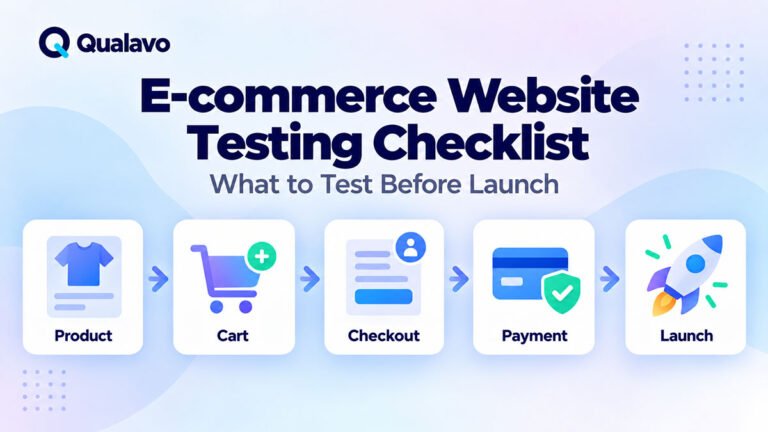
Shopping cart testing should therefore be treated as a critical part of the wider E-commerce Website Testing Checklist.
The Cart Is More Than a Product List
A shopping cart may look simple.
In reality, it often combines several business rules.
These can include:
- products;
- variants;
- quantities;
- prices;
- discounts;
- taxes;
- shipping thresholds;
- inventory;
- customer state;
- currency;
- promotions.
The cart also needs to communicate correctly with checkout.
A problem in any of these areas can result in an incorrect order.
This is why cart QA should test both:
what the customer sees
and:
the calculations and state behind the interface.
Start With the Basic Add-to-Cart Flow
Begin with the simplest successful journey.
For example:
Product Page → Add to Cart → Cart
Verify that:
- the correct product appears;
- the correct variant appears;
- the correct quantity appears;
- the correct price appears;
- the cart total is correct.
Then continue:
Cart → Checkout
The same product information should remain consistent.
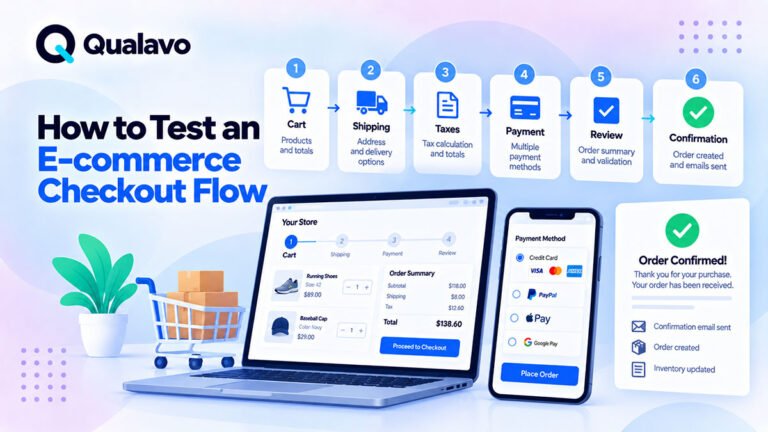
For deeper coverage of the next stage, see How to Test an E-commerce Checkout Flow.
Test Adding a Single Product
Start with one standard product.
Check that:
- Add to Cart works;
- the cart count changes;
- the correct product is added;
- price is correct;
- quantity defaults correctly;
- subtotal is correct.
This establishes a working baseline before testing more complex combinations.
Test Multiple Different Products
Add several different products to the cart.
Verify that each line item remains independent.
For example:
Product A × 1
Product B × 2
Product C × 1
Check:
- product names;
- images;
- variants;
- quantities;
- unit prices;
- line totals;
- overall subtotal.
One product should not overwrite or modify another unexpectedly.
Test Adding the Same Product More Than Once
Add the same product repeatedly.
The expected behavior depends on the store.
The cart may:
increase the existing quantity,
or:
create separate line items.
Either approach can be valid if it matches the intended design.
What matters is consistency.
Test:
Add Product → Add Same Product Again → Review Cart
Verify the resulting quantity and price.
Test Product Variants
Variant-based products create additional cart risk.
Examples include:
- size;
- color;
- material;
- subscription type;
- package size.
Add two variants of the same product.
For example:
T-shirt — Blue — Medium
and:
T-shirt — Black — Large
They should remain separate cart items if they represent different purchasable variants.
Check that the correct:
image, SKU where shown, price, attributes, and inventory behavior
follow the selected variant.
Test Quantity Changes
Changing quantities is one of the most important cart interactions.
Test:
1 → 2
2 → 1
and larger valid quantities.
Verify:
- quantity updates;
- line total recalculates;
- cart subtotal recalculates;
- tax or shipping rules update where relevant;
- checkout receives the new quantity.
The calculation should update consistently throughout the cart.
Test Minimum Quantity
If the store requires a minimum quantity, test the boundary.
For example, if minimum quantity is 1:
attempt:
0
and:
1
The cart should prevent invalid quantities and communicate the rule clearly.
Test Maximum Quantity
If a product has a maximum quantity, test:
maximum − 1
maximum
maximum + 1
For example, if the limit is 10:
9 → 10 → 11
The first two should behave according to the rule.
The invalid value should be prevented or handled correctly.
Boundary testing is especially useful for shopping-cart logic because pricing and inventory bugs frequently appear around limits.
Test Zero and Negative Quantities
The cart should not allow invalid states such as:
0 items
or:
−1 items
unless quantity zero intentionally removes the product.
Test direct typing where quantity fields allow manual entry.
Do not test only the plus and minus buttons.
Test Non-Numeric Quantity Input
If the quantity field accepts typing, try:
letters, decimal values, spaces, special characters, and very large numbers.
The interface should handle invalid input safely.
It should not produce:
broken calculations, negative totals, technical errors, or unexpected cart states.
Test Removing Products
Remove an item from the cart.
Verify that:
- the correct item disappears;
- cart count updates;
- subtotal updates;
- discounts recalculate;
- shipping calculations update where relevant.
If the last item is removed, the cart should enter the intended empty state.
Test the Empty Cart
An empty shopping cart should not look broken.
Check:
- clear empty-cart message;
- no stale subtotal;
- no checkout action where checkout is impossible;
- useful navigation back to products.
The customer should understand what happened and how to continue shopping.
Test Product Links From the Cart
Customers often click a product name or image to return to the product page.
Verify that the cart links to the correct product and variant where appropriate.
Returning to the product page should not unexpectedly change the existing cart.
Verify Unit Prices
Check that each item’s unit price matches the expected product price.
Pay special attention to:
sale prices, member prices, variant-specific prices, volume prices, and promotional prices.
The product page and cart should not show conflicting values without a documented reason.
Verify Line Totals
For each product:
Unit Price × Quantity = Line Total
For example:
$25 × 3 = $75
This seems trivial, but quantity changes, discounts, rounding, and custom pricing logic can introduce calculation defects.
Verify the Cart Subtotal
The cart subtotal should equal the sum of relevant line totals before later adjustments such as shipping or tax.
For example:
Product A = $40
Product B = $25
Product C = $15
Expected subtotal:
$80
Test calculations rather than simply assuming displayed totals are correct.
Test Decimal and Rounding Behavior
Currency calculations can expose rounding problems.
For example:
$9.99 × 3
should result in:
$29.97
Test combinations involving decimals, discounts, tax, and multiple quantities.
Rounding should remain consistent between:
product page, cart, checkout, payment, and order confirmation.
Test Sale Prices
If a product is discounted, verify that the cart uses the correct current price.
Check:
- original price where displayed;
- sale price;
- line total;
- subtotal.
A product should not revert unexpectedly to its normal price after being added to the cart.
Test Price Changes
Consider what happens when a product’s price changes after it has already been added to a cart.
Different stores may intentionally behave differently.
The important point is that the behavior should follow the business rule.
Test whether:
the cart updates automatically, preserves the old price temporarily, or requires another action.
Do not assume the expected behavior without confirming the requirement.
Test Coupon Codes
Coupons add substantial cart complexity.
Test:
- valid coupon;
- invalid coupon;
- expired coupon;
- coupon with minimum spend;
- coupon restricted to products;
- coupon restricted to categories;
- coupon with maximum uses;
- removing a coupon.
Verify that the discount amount is correct.
Test Coupons at Their Boundaries
Suppose a coupon requires a minimum cart value of $100.
Test:
$99.99
$100.00
$100.01
The rule should behave correctly at the exact threshold.
Risk-based boundary testing like this can find defects with relatively few test cases.
For more on prioritizing high-value scenarios, see Risk-Based Testing: How to Prioritize What Matters Most.
Test Multiple Coupons
If the store allows multiple coupon codes, test valid combinations.
If it does not allow stacking, confirm that users cannot combine them accidentally.
Test:
- coupon A then coupon B;
- coupon B then coupon A;
- remove one coupon;
- replace a coupon.
The final total should always be explainable.
Test Automatic Promotions
Some promotions are applied without a coupon.
Examples include:
Buy 2, Get 1 Free
10% Off Orders Above $100
Free Shipping Above $50
Test whether the promotion appears and disappears correctly when the cart crosses the relevant threshold.
Test Shipping Thresholds
Suppose free shipping starts at $50.
Test:
$49.99
$50.00
$50.01
If removing one product takes the cart below the threshold, the shipping state should update.
The same should happen if a discount changes the qualifying cart value, depending on the business rule.
Test Tax Calculations
If tax appears in the cart, verify:
- correct rate;
- correct taxable items;
- correct rounding;
- correct subtotal basis.
If tax depends on location, test representative locations.
The amount shown in the cart should remain consistent with checkout unless the design intentionally delays final tax calculation.
Test Shipping and Tax Together
Cart logic becomes more complex when several calculations interact.
For example:
Products → Discount → Tax → Shipping
or:
Products → Discount → Shipping → Tax
The calculation order matters.
Confirm the expected business rule and test the final total accordingly.
Test Inventory Limits
If only three units remain, try adding:
1
3
4
The cart should not allow customers to purchase more stock than the system permits.
If inventory changes while an item is already in the cart, verify how the site handles the situation before checkout.
Test Out-of-Stock Products
Try adding a product that is out of stock.
The expected behavior may be:
- Add to Cart disabled;
- item prevented from entering the cart;
- backorder allowed.
Whatever the intended rule, the cart should not silently accept an impossible purchase.
Test Products That Become Unavailable
A product may be added to the cart and become unavailable before checkout.
The cart should handle this state clearly.
Possible behavior could include:
warning the customer, disabling checkout until the item is removed, or automatically adjusting the cart.
The customer should not encounter an unexplained failure later in the payment process.
Test Cart Persistence
Many stores preserve cart contents between pages or sessions.
Test:
Add Product → Navigate Away → Return to Cart
The item should remain if persistence is intended.
Also test:
Add Product → Close Browser → Return
The expected behavior depends on session and cookie design.
Document the intended persistence rule before treating a difference as a defect.
Test Cart Persistence for Logged-In Users
Logged-in customers may have different cart behavior.
Test:
Login → Add Item → Logout → Login Again
and, where relevant:
Add Item as Guest → Login
Check whether items:
remain, merge, duplicate, or disappear.
Cart merging deserves particular attention because duplicate quantities can easily appear.
Test Guest Cart to Account Cart Merging
A customer may create a cart before logging in.
Then they authenticate.
The system needs to decide what happens to:
the guest cart and the existing account cart.
Test realistic scenarios with products in both.
Verify that quantities and totals do not unexpectedly double or disappear.
Test Cart Count and Mini-Cart
Many websites show cart state outside the main cart page.
Examples include:
- header cart icon;
- mini-cart;
- cart drawer;
- floating cart badge.
When cart contents change, verify that all representations update consistently.
For example:
Cart Page: 3 items
should not coexist with:
Header Badge: 2 items
unless the store intentionally uses a different count model.
Test the Mini-Cart Independently
If the site has a mini-cart or drawer, test:
open, close, quantity display, removal, links, subtotal, and checkout button.
A mini-cart often uses JavaScript or AJAX, which can behave differently from the full cart page.
Test AJAX Cart Updates
If cart changes happen without full page reloads, test repeated interactions.
For example:
+ → + → − → Remove
Watch for:
delayed totals, duplicate requests, stale information, or controls becoming unresponsive.
Rapid interactions can expose race conditions that normal slow clicking does not reveal.
Test Double-Clicking Add to Cart
A customer may click a button twice because the site responds slowly.
Test whether this:
adds two items, creates duplicate entries, or is safely prevented.
The expected result depends on the intended behavior, but accidental duplication should be considered.
Test the Browser Back Button
After adding or changing cart contents, use browser Back and Forward controls.
Verify that the interface does not display stale cart data.
This can be particularly relevant for AJAX-driven carts and cached pages.
Test Page Refresh
Change the cart, then refresh the page.
The state should remain consistent.
Watch for:
quantities reverting, coupons disappearing, duplicate entries, or totals changing unexpectedly.
Test Multiple Browser Tabs
Open the store in two tabs.
Change the cart in one tab.
Then use the second tab.
Depending on the architecture, the cart may not update instantly.
But it should eventually remain logically consistent and should not create incorrect orders.
Test Checkout Handoff
The cart may be correct while the transition to checkout is not.
Before clicking Checkout, note:
- items;
- variants;
- quantities;
- discounts;
- subtotal.
Then compare them with checkout.
Nothing should disappear or change unexpectedly.
The cart-to-checkout boundary is one of the highest-value areas to test.
Test the Checkout Button
Verify that the checkout action:
is visible, works, links to the correct environment, and cannot create unexpected duplicate sessions.
On mobile, check that fixed elements or cookie banners do not cover it.
Test Continue Shopping
If the cart contains a Continue Shopping action, verify where it leads.
Then add another item and return to the cart.
Existing cart contents should remain intact.
Test Responsive Cart Layouts
Shopping carts often contain complex information:
product image, description, attributes, price, quantity, remove control, and total.
On mobile, all of this needs to fit into much less space.
Test:
- desktop;
- tablet;
- mobile;
- small mobile.
For a complete responsive framework, see Responsive Website Testing Checklist for Desktop, Tablet and Mobile.
Watch for Horizontal Overflow
Cart tables are common sources of horizontal scrolling.
On mobile, check whether:
prices disappear, quantity controls move off-screen, remove buttons become inaccessible, or columns overlap.
If the design intentionally uses horizontal scrolling, make sure important actions remain understandable and accessible.
Test Long Product Names
Use products with long names or variants.
For example:
Premium Lightweight Waterproof Outdoor Jacket — Midnight Blue — Extra Large
The cart should handle long content without:
overlapping prices, breaking controls, or creating unusable rows.
Test Large Quantities and Totals
Large values can expose layout problems.
For example:
Quantity: 999
Total: $12,999.99
Check whether the layout still works.
This can be especially important on mobile.
Test Mobile Quantity Controls
Plus and minus buttons that work with a mouse may be frustrating on touchscreens.
Verify that:
- controls are easy to tap;
- buttons do not overlap;
- repeated taps work;
- quantity updates are visible.
Touch usability is part of functional cart quality.
Test Cart Accessibility
Important cart functionality should remain usable with keyboard navigation.
Check:
- quantity controls;
- remove actions;
- coupon field;
- update action;
- checkout button.
Also verify visible focus and meaningful control labels.
For broader accessibility coverage, see Website Accessibility Testing Checklist: A Practical QA Guide.
Test Error Messages
If the cart cannot complete an action, the user should understand why.
Examples include:
- insufficient stock;
- invalid coupon;
- minimum order not met;
- product unavailable.
Error messages should be:
clear, visible, associated with the relevant action, and useful.
Avoid generic messages such as:
Something went wrong.
when the system can provide a more actionable explanation.
Test Recovery After an Error
Do not stop when an error appears.
Correct the problem and try again.
For example:
Invalid Coupon → Remove Coupon → Continue
or:
Quantity Above Stock → Reduce Quantity → Checkout
Users should be able to recover without refreshing the entire site or rebuilding the cart.
Test Cart Behavior Across Supported Browsers
A cart can behave differently across browsers because of:
- JavaScript;
- session storage;
- cookies;
- CSS;
- AJAX.
Run important cart flows in the browsers defined by the project’s test matrix.
For browser planning, see Browser and Device Test Matrix: How to Choose What to Test.
For deeper compatibility coverage, see Cross-Browser Testing Guide: How to Test Websites Across Browsers.
Test With Cookies and Session Behavior in Mind
Cart persistence may depend on cookies or session storage.
Test:
- normal browsing;
- new session;
- logout/login;
- expired session where relevant.
Do not assume that every persistence difference is a defect.
Confirm the intended design.
Check for Sensitive Information
Shopping carts should not expose unnecessary sensitive information.
Review:
URLs, browser-visible errors, debug output, and customer-specific information.
Routine cart QA is not penetration testing, but basic security sanity checks still matter.
For broader guidance, see Website Security QA Checklist: Basic Checks Before Launch.
Verify Analytics Events Where Relevant
Cart interactions are often important analytics events.
Depending on the implementation, verify actions such as:
- add_to_cart;
- remove_from_cart;
- view_cart;
- begin_checkout.
Check that events are not fired twice because of repeated JavaScript handlers.
Analytics errors may not affect the purchase itself, but they can distort conversion reporting.
Test Cart Performance Sanity
A cart should not become significantly slower as products are added.
Try representative realistic cart sizes.
Watch for:
slow quantity updates, delayed coupon application, long AJAX requests, or UI freezes.
You do not need full load testing for routine cart QA, but obvious performance degradation should be investigated.
Test Extreme Cart Sizes Where Relevant
Most users may purchase only a few products.
Some stores, however, serve wholesale or B2B customers.
If large carts are realistic, test:
10, 20, 50, or more line items
according to actual business use.
The cart should remain usable and totals should remain correct.
Check Cart Behavior After Product Changes
Changes in the product catalog can affect existing carts.
Test what happens if a product:
changes price, changes availability, changes variant, is removed, or becomes unpublished.
The site should handle stale cart data gracefully.
Test Currency Behavior
If the store supports multiple currencies, test:
- currency switch;
- cart persistence after switching;
- prices;
- discounts;
- totals.
Currency symbols and decimal formatting should remain consistent.
Do not mix currencies inside one cart unless that is intentionally supported.
Test Localization Where Relevant
International stores may need to handle:
different decimal separators, currency formats, long translations, address formats, and tax rules.
A cart that works for one locale may fail visually or mathematically in another.
Prioritize locales based on real business requirements.
Common Shopping Cart Bugs
Typical defects include:
- incorrect quantities;
- wrong prices;
- stale totals;
- duplicate products;
- lost variants;
- incorrect coupons;
- shipping threshold errors;
- inventory limits ignored;
- cart lost after login;
- guest and account carts duplicated;
- mobile overflow;
- mini-cart inconsistent with main cart;
- checkout receiving different totals.
This is why cart QA needs more than a single Add to Cart test.
How to Report a Cart Bug
A strong cart defect report should make the calculation and state easy to reproduce.
For example:
Title: Cart subtotal does not update after quantity change
Environment: Chrome / Windows
Steps:
- Add Product A at $20.
- Open cart.
- Change quantity from 1 to 2.
Expected:
Subtotal changes from $20 to $40.
Actual:
Quantity shows 2 but subtotal remains $20.
For a reusable structure, see Bug Report Template: What Every Defect Report Should Include.
Prioritize Cart Bugs by Business Impact
Cart bugs should be classified based on their real consequences.
For example:
Critical
Customers cannot proceed to checkout.
High
Cart calculates incorrect totals for common orders.
Medium
Mini-cart count is temporarily incorrect but the main cart is correct.
Low
Minor spacing problem in one cart row.
For the underlying distinction, see Bug Severity vs Priority: What’s the Difference?.
Some Cart Bugs Should Block Release
A cart issue may justify a No-Go when it causes:
- incorrect customer charges;
- lost cart items;
- inability to checkout;
- serious inventory errors;
- data problems;
- widespread failures in important environments.
For the wider release decision framework, see Which Bugs Should Block a Website Release?.
Retest Cart Fixes Carefully
Cart logic is interconnected.
If a developer fixes coupon calculations, do not test only one coupon scenario.
Consider related areas such as:
subtotal, shipping threshold, tax, and checkout total.
A focused regression around the changed calculation can reveal side effects.
Run Cart Regression Before Important Releases
A reusable cart regression suite might include:
Add Product → Change Quantity → Apply Coupon → Remove Product → Add Variant → Verify Total → Checkout
Then add release-specific tests for recently changed functionality.
This approach provides stronger coverage than rebuilding the entire test plan for each release.
Shopping Cart Testing Checklist
Product Handling
- Single product can be added.
- Multiple products can be added.
- Same product behaves correctly when added again.
- Variants remain distinct.
- Product links are correct.
- Correct product image is shown.
Quantity
- Quantity can be increased.
- Quantity can be decreased.
- Minimum quantity is enforced.
- Maximum quantity is enforced.
- Invalid quantities are rejected.
- Inventory limits are enforced.
Pricing
- Unit prices are correct.
- Line totals are correct.
- Subtotal is correct.
- Sale prices are correct.
- Decimal calculations are correct.
- Rounding is consistent.
Discounts
- Valid coupon works.
- Invalid coupon is rejected.
- Expired coupon is rejected.
- Minimum-spend rules work.
- Product restrictions work.
- Coupon removal works.
- Multiple-coupon rules work.
- Automatic promotions work.
Shipping and Tax
- Shipping thresholds work.
- Boundary values are tested.
- Tax is calculated correctly.
- Discount/shipping/tax interaction is correct.
Cart State
- Product removal works.
- Empty cart behaves correctly.
- Cart persists as intended.
- Refresh keeps correct state.
- Login/logout behavior is correct.
- Guest/account cart merging is correct.
- Mini-cart matches main cart.
Responsive and Accessibility
- Desktop cart works.
- Tablet cart works.
- Mobile cart works.
- No unintended horizontal overflow.
- Quantity controls work with touch.
- Keyboard navigation works.
- Focus remains visible.
- Important actions remain accessible.
Checkout Handoff
- Checkout button works.
- Products remain correct.
- Variants remain correct.
- Quantities remain correct.
- Discounts remain correct.
- Totals remain correct.
Do Not Test the Cart in Isolation
The shopping cart belongs to a larger transaction.
A complete e-commerce journey is:
Product → Cart → Checkout → Payment → Confirmation → Order
Each boundary between these stages deserves testing.
A perfect cart is not enough if checkout receives different information.
Likewise, a successful payment is not enough if the resulting order is incorrect.
End-to-end QA connects the stages.
Focus on Calculations and State
Visual defects are easy to notice.
Cart logic defects can be less obvious.
A customer may see a polished interface while:
discount calculation is wrong, shipping eligibility is incorrect, inventory is stale, or session state has duplicated an item.
Always verify the underlying numbers and state changes.
Final Thoughts
Shopping cart testing is a critical part of e-commerce QA because the cart connects product selection with the purchase process.
A strong cart test should verify much more than:
Can I add a product?
Test:
products, variants, quantities, prices, discounts, shipping, tax, inventory, persistence, responsive behavior, accessibility, error recovery, and checkout handoff.
Pay particular attention to:
calculation boundaries, cart persistence, guest-to-account transitions, promotions, inventory changes, and mobile usability.
Then retest the highest-risk cart workflows after relevant fixes.
The goal is simple:
when the customer reaches checkout, the cart should contain exactly what they selected, at exactly the correct price, in a state the checkout process can trust.